Manage AI Incident Assistant General Settings
.
General Settings
In the Configuration > General Settings section, configure settings related to onboarding, teams, incident priority levels, login methods, and the large language model (LLM).
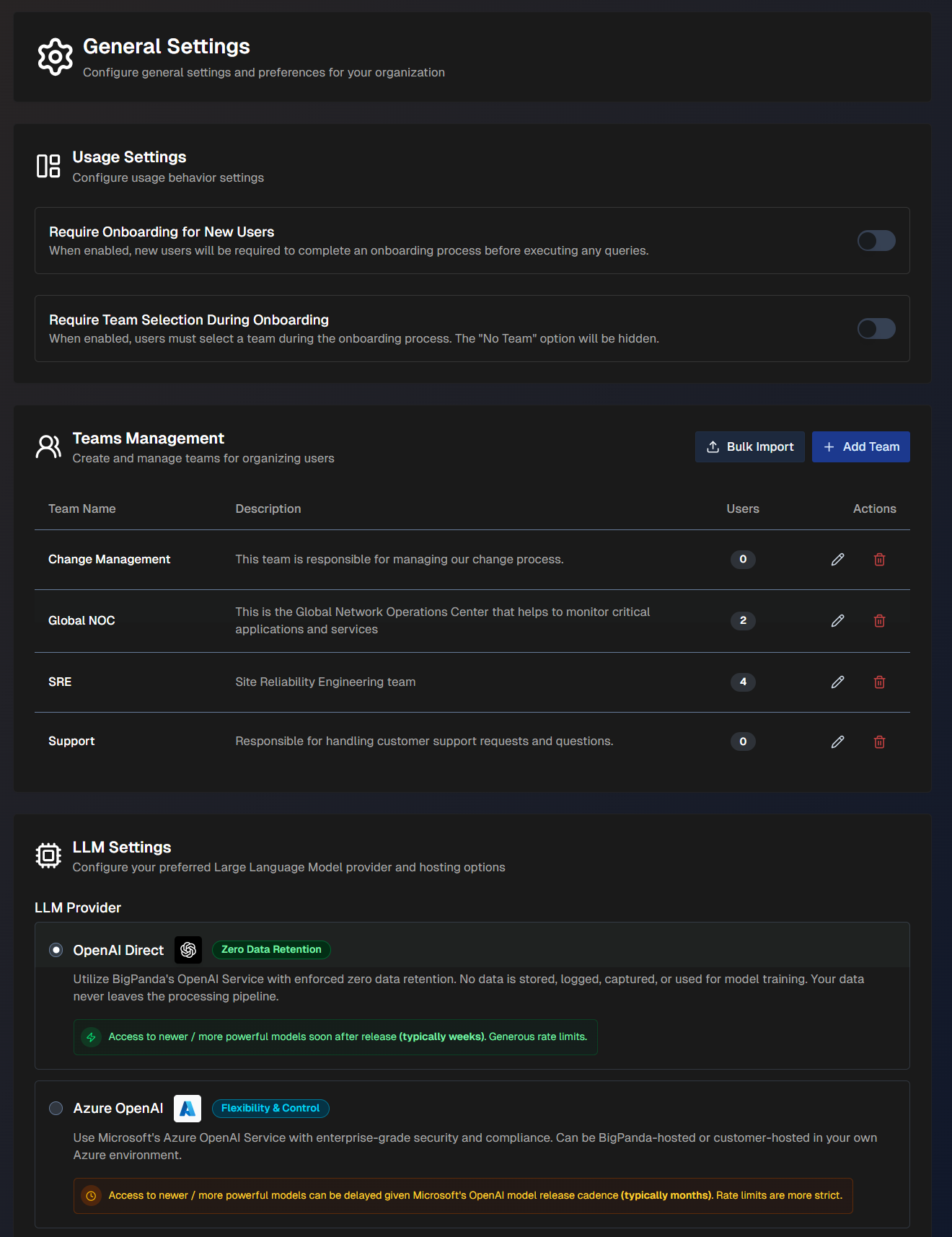
Usage Settings
On the Configuration > General Settings page under Usage Settings, configure behavior related to user onboarding. The following can be configured:
Require Onboarding for New Users - When enabled, all new users must complete Guided Onboarding before they can execute any queries.
Require Team Selection During Onboarding - When enabled, users must select a Team during the onboarding process.
Show Individual Names in Team Analytics - When disabled, the Team Analytics dashboard will display pseudonyms instead of real names. This only affects the Team Analytics page.
Teams Management
On the Configuration > General Settings page under Teams, create and manage teams to organize users.
Teams allow you to better track how specific groups within your organization are using AI Incident Assistant. Team usage information is available in the Team Analytics page.
You can create one team at a time or multiple teams at once.
To create multiple teams:
Click Bulk Import.
In the Team Names field, enter team names separated by commas or new lines. Duplicate names will be skipped.
Team descriptions
If you need to add descriptions to the teams added in bulk, you can edit them after they have been imported.
Click Import Teams.
To create a single team:
Click + Add Team.
Populate the following information:
Team Name - descriptive name for the team.
Team Grouping (Optional) - add your team to a Team Group for analytics purposes.
Description (Optional) - brief description of the team to help users understand the team's purpose.
Click Create Team.
After a team is created, users can select their team as part of the Guided Onboarding process. Or, users can be manually assigned to a team on the Users page.
Team membership
A user can only be a member of one team at a time. If a user moves from one team to another, all of their usage metrics will be attributed to their new team.
To edit a team, click the Pencil icon.
To permanently delete a team, click the Trash can icon.
Team Groupings
On the Configuration > General Settings page under Team Groupings, create and manage team groups to organize your teams into groups.
For example, if your NOC, SRE, and Support teams are all part of the Customer division at your organization, you can create a team grouping to organize those teams together for analytics purposes.
To create a team grouping:
Click + Add Grouping.
In the Create Team Grouping window, populate the following information:
Grouping Name - descriptive name for the team grouping.
Description (Optional) - brief description of the team grouping to help users understand its purpose.
Assign Teams - select one or more teams to add to the group.
Click Create Grouping to save.
To edit a team grouping, click the Pencil icon.
To permanently delete a team grouping, click the Trash can icon.
Incident Priority Values
On the Configuration > General Settings page under Incident Priority Values, define the incident priority ordering used for mapping incident notifications from BigPanda Event Management and for AI Incident Assistant Managed Incident Channels.

Import your priorities from BigPanda Event Management by selecting Sync from BigPanda EM. To use the AI Incident Assistant default priorities, select Use Default Priorities.
Priorities should be arranged in the list with the highest at the top and the lowest at the bottom. To add a new priority to the list, select + Add Priority and populate the Display Value, Emoji color, and the BigPanda EM Value (Optional).
BigPanda EM Value
The BigPanda EM Value field corresponds with the Order ID of the Priority Tag in BigPanda Event Management.
Login Methods
On the Configuration > General Settings page under Login Methods, select which web app login methods will appear to users in your organization.
If a method is disabled, it will not appear as an option on the web app login screen for any of your users. At least one login method must be enabled.
Single sign-on (SSO)
Single sign-on (SSO) is available as a login method for the AI Incident Assistant web app. If you'd like to enable SSO, contact BigPanda Support.
The following methods can be enabled or disabled:
Slack
Microsoft Azure AD
BigPanda SSO
LLM Settings
On the Configuration > General Settings page under LLM Settings, configure settings related to your large language model provider.
Approval required
Updating this section requires approval from BigPanda.
Options include:
OpenAI Direct (Default) - BigPanda's OpenAI Service with enforced zero data retention. No data is stored, logged, captured, or used for model training. Your data never leaves the processing pipeline.
Azure OpenAI - Microsoft's Azure OpenAI Service with enterprise-grade security and compliance. Can be BigPanda-hosted or customer-hosted.