Scheduled Workflows
.
Scheduled Workflows
Scheduled workflows allow you to create multi-action agentic functions that automatically occur at specific times or intervals. You can schedule any workflow to fully automate your prompts, action plans, and decision points. Monitor scheduled agentic results by configuring the workflow to post the results to a channel or email address.
Scheduled workflow example
You can configure a scheduled workflow to invoke the Generate Channel Summary action plan during an on-call handoff, so that the next shift can quickly get caught up on what has occurred.
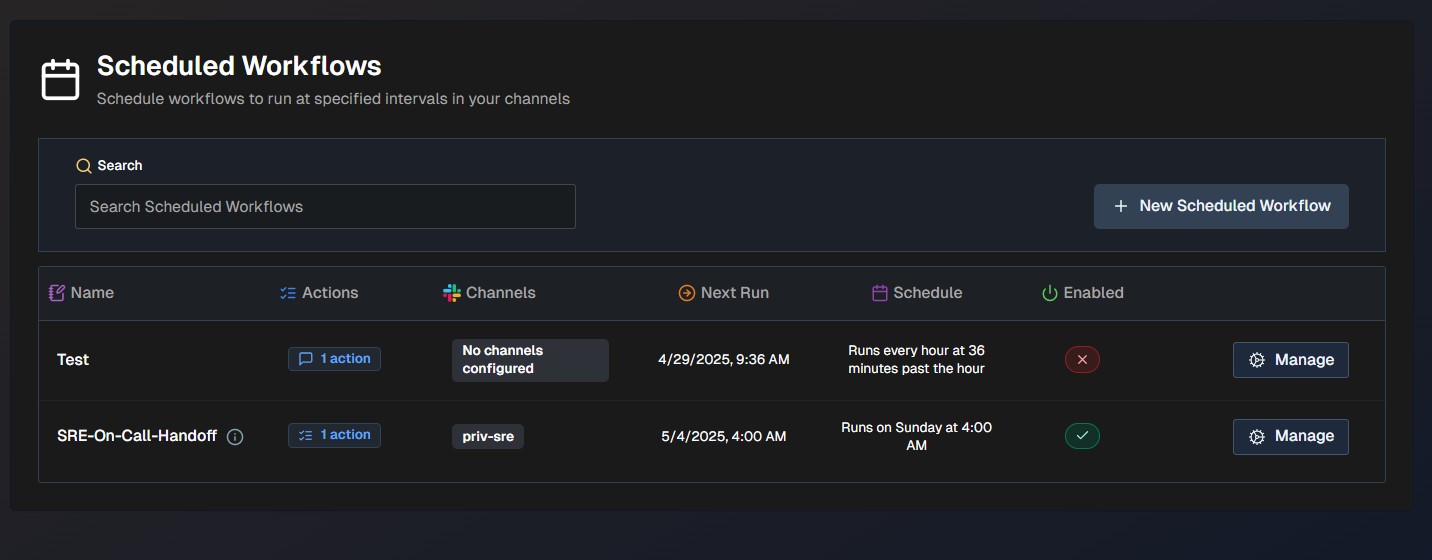
The following information about each scheduled workflow is displayed in the list:
Name - the name of the workflow.
Actions - the number of actions configured. Hover over the number to view the types of actions.
Channels - the channel(s) where the workflow is configured.
Next Run - the date and time when the workflow will run next.
Schedule - the scheduled interval for when the workflow will run.
Enabled - whether or not the workflow will run at the next scheduled interval.
Click the Manage button next to any workflow in the list to view, edit, or delete it.
Use the Search bar at the top of the page to find a specific workflow.
Generate a New Scheduled Workflow
AI Incident Assistant can automatically generate scheduled workflows based on a short description of a workflow.
Example description
Below is an example of a workflow description prompt:
Generate a shift change workflow that summarizes reported incidents from the past 12 hours in a chat channel, lists any P1/P2 incidents created within the past 12 hours, and includes pending action items for the new shift to action.
To generate a new scheduled workflow:
On the Scheduled Workflows page, click + New Scheduled Workflow.
In the upper right corner of the page, select Generate Workflow.
In the Workflow Generator window, enter a Description of the workflow you'd like to create. Be sure to include clear, detailed instructions in plain language.
Click Generate Workflow.
The Scheduled Workflows configuration page is populated based on your description. Review each field to ensure that the workflow meets your needs. Click Apply to apply the generated configuration.
Detailed descriptions of each field are available in the Manually Create a Scheduled Workflow documentation.
If you want to start over, click Rollback to erase the content from all fields. To add information to the prompt, click Refine and enter additional instructions. If the content looks good, click Accept.
Once you are satisfied with the content, scroll to the bottom of the page and click Save.
Manually Create a New Scheduled Workflow
You can create a new scheduled workflow from scratch without using AI Incident Assistant's generation feature.
To create a new scheduled workflow:
On the Scheduled Workflows screen, select + New Scheduled Workflow.
In the Create Scheduled Workflows section, configure the following:
Field
Description
Name
Enter a name for the scheduled workflow.
Description (Optional)
Enter a description of the scheduled workflow.
Enabled
Choose whether or not you would like the scheduled workflow to be enabled upon creation.
In the Schedule section, define the intervals for when AI Incident Assistant should execute the workflow:
Field
Description
Repeat every
Choose how often you would like the scheduled workflow to repeat. All workflows take place in your local time zone.
Enter an interval number and select a time format. You can choose from:
Minutes (maximum 59, minimum 15)
Hours (maximum 24)
Days (maximum 31)
Weeks (maximum 1)
Months (maximum 12)
Repeat on
This field appears only if you selected the time format of Weeks or Months.
Select the day of the week or month that you would like the workflow to repeat on.
At
This field appears only if you selected the time format of Hours, Days, Weeks, or Months.
Select the minute or time of day that you would like the workflow to repeat on.
In the Actions section, configure your workflow steps.. To add an action to the list, click + Add Action.
In the Create Workflow Action screen, configure actions. Choose from System Prompt, Action Plan, or Decision action types, then configure the following fields:
Field
Description
System Prompt
This field only appears if you selected the System Prompt action type.
Enter a system prompt that defines what AI Incident Assistant should do when this step is executed. Use the AI Generation button to have AI Incident Assistant generate a complete, detailed prompt based on your input.
Action Plan
This menu only appears if you selected the Action Plan action type.
Select one of your configured action plans to use when this workflow is triggered.
Action Instructions (Optional)
This field only appears if you selected the Action Plan action type.
Provide any instructions to help AI Incident Assistant successfully execute the action plan. These instructions tell AI Incident Assistant:
the goal of the action in the context of the larger workflow
how to transform the previous action's output into useful input for this action
Decision Prompt
This field only appears if you selected the Decision action type.
Enter a conditional logic prompt to determine whether or not the workflow continues based on the results of the previous action.
Click Add to complete the step and add it to the scheduled workflow.
(Optional) Repeat steps 5-6 to add additional actions.
(Optional) Adjust the order of actions by dragging and dropping them into place.
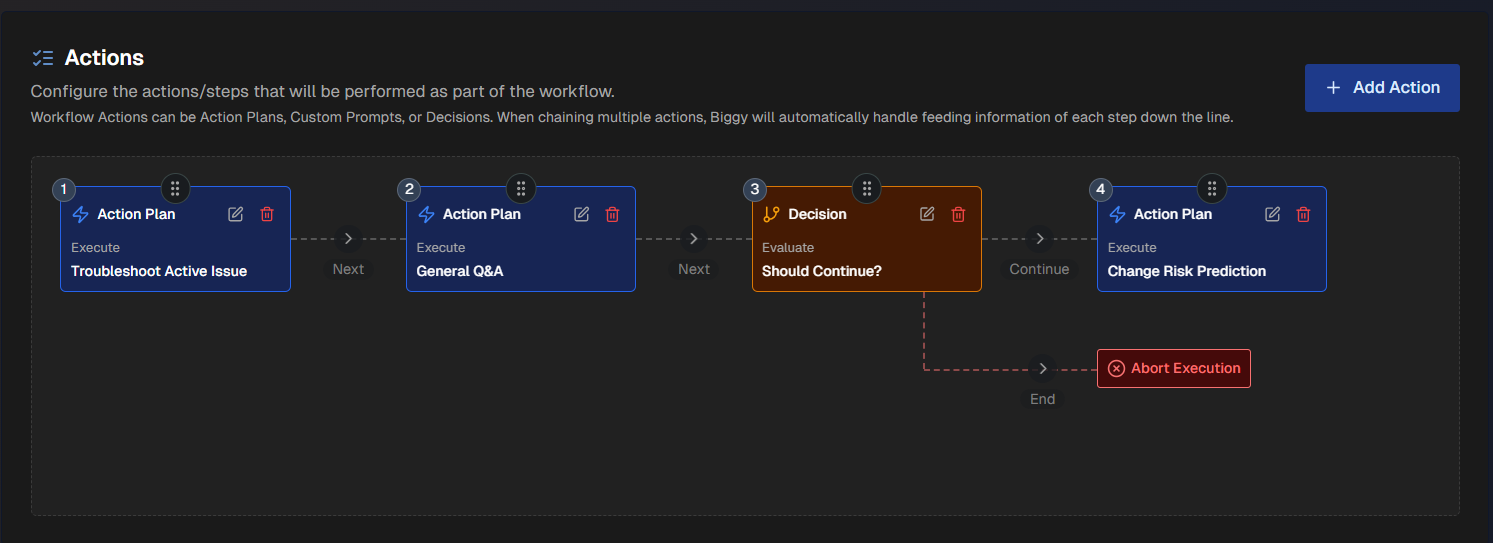
In the Response Behavior section, determine when AI Incident Assistant posts workflow results. You can choose to always post results, or specify conditions for when AI Incident Assistant shares results. Use the Always Respond toggle to choose between these options.
(Optional) If Always Respond is toggled off, you can enter a Condition Prompt for when AI Incident Assistant posts the workflow results. If a condition prompt is not provided, AI Incident Assistant will use its best judgment to determine when to post workflow results.
(Optional) In the Result Message Formatting section, enter a Formatting Prompt to customize how AI Incident Assistant combines and formats the outputs from all workflow actions into a single result message.
In the Output Results section, configure the following fields to let AI Incident Assistant know where workflow responses should be sent:
Field
Description
Send Results to Channels
Enable this field to send the results of the scheduled workflow to the channel(s) you select.
Channels
Select one or more channels to send the results of the workflow.
Send as Email
Enable this field to deliver workflow responses to one or more email addresses.
If you enable this field, enter email addresses in the box below separated by commas.
Click Save.