ITSM Integrations
ITSM tools are used for ticket management, SLA tracking, and workflow automation. These integrations enhance service desk efficiency and incident handling.
The following ITSM integrations are available:
BMC Remedy
Development integration
This integration is currently in development status. It is not ready for general use and may have some incomplete features. If you're interested in early access to this integration, contact BigPanda support.
The Biggy BMC Remedy integration is used for IT service management.
To configure the BMC Remedy integration, enter your BMC Remedy API Key and click Save.
Jira
The Biggy Jira integration is used for issue tracking and project management.
To configure the Jira integration, populate the following fields:
Field | Description |
|---|---|
Jira URL | Jira endpoint URL. |
Username and Password | Username and Password of the Jira account that Biggy should use for API interactions. The account used for the integration must have admin privileges in order to access the required endpoints. |
Custom Headers (Optional) | Add custom HTTP headers to include with all API requests. For each header, include the Header Name and Header Value. To add additional headers, click the + sign. |
Deployment Type | Select whether your Jira integration is Cloud or On-Prem. Certain integrations have endpoints that work only with one deployment type. Selecting the correct option automatically applies the right guardrails to the Biggy agents. Note: On-prem integrations can connect via the Relay Client, enabling secure communication with infrastructure behind your firewall. |
System/Schema Nuances | List any special field mappings, naming conventions, custom tables/fields, or other knowledge that helps Biggy more effectively interact with your tool. We highly recommend configuring this field, as it allows you to enter organization-specific information that enables Biggy to provide more accurate and consistent results. For example, you can include explanations of any custom fields and when or how they should be used to handle certain types of user queries. |
ServiceNow
The Biggy ServiceNow integration is used for managing incidents and requests.
CMDB and On-Call
The Biggy ServiceNow integration is also part of the CMDB and On-Call integration categories.
Biggy and Unified Data Connector
See the Unified Data Connector documentation for information about syncing data from ServiceNow to Biggy.
Biggy Required Tables and Endpoints
To enable the ServiceNow integration, Biggy requires access to certain tables and endpoints.
Access to the following tables is required:
change_requestchange_taskcmdb_cicmdb_ci_business_appconflictdocumentincidentkb_knowledgenew_callproblemproblem_taskrm_defectrm_epicrm_featurerm_releaserm_storyrm_testsc_req_itemsc_requestsc_tasksn_customerservice_casesys_attachmentsys_attachment_docsys_choicesys_usersys_user_grouptasktask_citask_cmdb_ci_servicetask_outageticket
Indirect access
Indirect access via reference links is required for things such as cmdb_ci_*, but this depends on your ServiceNow tables.
For example, if you have a field on an incident table such as u_business_app that points to a particular table, Biggy would need access to that table to effectively dot-walk that reference.
Access to additional tables
Users may ask Biggy for information from tables not listed above. For Biggy to be able to access that information, it would need to be given access to the additional tables where the information is stored.
Customer admins need to determine which tables these are, whether they want Biggy to be able to answer questions about the data in those tables, and then include access to those tables in the provisioned Biggy service account user.
Access to the following endpoints is required:
Endpoint | How it is used |
|---|---|
| OAuth token minting. Default when OAuth authentication is used, but not needed if using Basic authentication. |
| On call lookup. |
| Validating user references in queries and mapping names and emails to sys_ids for subsequent lookups. (For example, "How many incidents did John Smith resolve this year?") |
| Record lookup and queries. |
| Following a reference link from previous results. |
| Incident creation. |
| Add work notes or comments. |
| Counting and aggregation. |
| Retrieve table schema. |
| Retrieve all table definitions. |
AI Incident Prevention Required Tables
The following tables are required for AI Incident Prevention:
Read (query) access:
Table | Enum Value | Function |
|---|---|---|
|
| Fetch the main change record being assessed and query recent changes for CIs |
|
| Fetch change tasks associated with a change and recent tasks for CIs |
|
| Fetch incidents caused by related changes (track record analysis) |
|
| Resolve CI details by name or |
|
| Fetch affected CIs linked to a task (join table between tasks and CIs) |
|
| Fetch affected services linked to a change (join table between tasks and CMDB CI services) |
|
| Fetch outage records associated with a change (via |
|
| Fetch scheduling conflict records for a change |
Read via link-following (dot-walked reference fields):
Resolved Record Type | Function |
|---|---|
Business service record (typically | Follows the |
Primary CMDB CI record (typically | Follows the Note: If the CI resolves to a subclass table (for example |
Affected service detail records | Follows |
Affected CI detail records | Follows |
Write access:
Table | Enum Value | Function |
|---|---|---|
|
| Sync risk score/level fields back to the change record (field sync feature) |
|
| Post a work note with the risk assessment summary |
Configure the Biggy ServiceNow Integration
To configure the Biggy ServiceNow integration, populate the following fields:
Field | Description |
|---|---|
Authentication Method | Choose how you'd like to authenticate with this integration. The following methods are available:
|
ServiceNow URL | Base URL of your ServiceNow instance. (For example, |
Credentials | If you selected Basic Auth as your authentication method, enter the Username and Password of the ServiceNow account that Biggy should use for API interactions. If you selected OAuth 2.0 as your authentication method, enter your OAuth Client ID and OAuth Client Secret, and optionally enter the Token URL Override. |
Custom Headers (Optional) | Add custom HTTP headers to include with all API requests. For each header, include the Header Name and Header Value. To add additional headers, click the + sign. |
Deployment Type | Select whether your ServiceNow instance is Cloud or On-Prem. Certain integrations have endpoints that work only with one deployment type. Selecting the correct option automatically applies the right guardrails to the Biggy agents. Note: On-prem integrations can connect via the Relay Client, enabling secure communication with infrastructure behind your firewall. |
System Time Zone | Select the time zone configured in your ServiceNow instance. This ensures that ServiceNow correctly interprets dates and times to maintain consistency. |
Override Display Base URL (Optional) | If your ServiceNow base URL points to a reverse proxy endpoint, enter an override URL that Biggy will use to display ServiceNow links when responding to user queries. For example, if your API endpoint is |
System/Schema Nuances | List any special field mappings, naming conventions, custom tables/fields, or other knowledge that helps Biggy more effectively interact with your tool. We highly recommend configuring this field, as it allows you to enter organization-specific information that enables Biggy to provide more accurate and consistent results. For example, you can include explanations of any custom fields and when or how they should be used to handle certain types of user queries. |
ITSM Ticket Configuration Settings
Configure the mandatory or allowed fields and values for ServiceNow tickets.
For certain interactions, like creating a ticket upon creation of an Biggy-managed incident channel, these settings control which fields or values are displayed to users during auto-population.
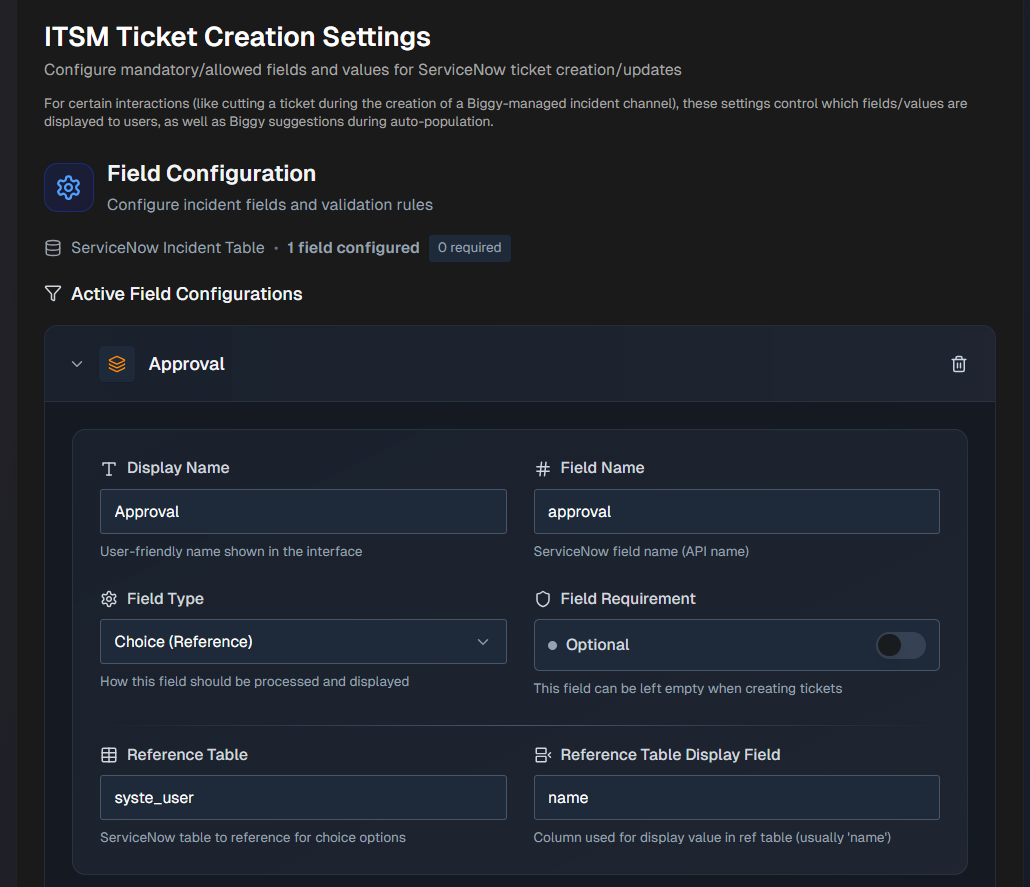
Configure the following sections:
Field Configuration
Add ServiceNow fields in the Field Configuration section:
Click + Add ServiceNow Field .
Select a field from the drop-down menu and click + Add.
Enter or edit the following information for the field:
Field
Description
Display Name
A user-friendly name that will appear in the UI. This field is prepopulated, but can be edited.
Field Name
The ServiceNow field name, also known as the API name. This field is prepopulated, but can be edited.
Field Type
Select how this field should be processed and displayed. Options include:
Text - plain text field extracted by Biggy based on prompt instructions.
Choice - a choice field in ServiceNow that has defined values in this table.
Choice (Reference) - a choice field in ServiceNow where the choices are referenced from a different table.
Constant - the value configured for this field will always be used, and cannot be updated by users when creating a ticket.
Field Requirement
Determine whether or not the field must be filled out when creating tickets.
Select Optional to allow the field to be left blank when creating tickets.
Select Mandatory if the field must be filled out when creating tickets.
Reference Table
This field will appear if you select Choice (Reference) for the Field Type.
Select the ServiceNow table to reference for choice options.
Reference Table Display Field
This field will appear if you select Choice (Reference) for the Field Type.
Select the ServiceNow column used for display value in reference table. The column used is typically
name.For Text fields, configure AI Extraction Guidance.
For Choice or Choice (Reference) fields, configure Choice Configuration.
For Constant fields, configure Constant Values.
Click Save Mappings.
All Active Field Configurations appear at the top of the section. Click any field to expand the configuration. You can click the Pencil icon to edit the configuration, or the Trash icon to delete it.
AI Extraction Guidance
The AI Extraction Guidance section will appear if you select Text for the Field Type. Use the Suggestion Prompt to help Biggy understand how to extract and populate the field.
The following is an example of a Suggestion Prompt:
Extract the affected service name from the incident description. Look for keywords like system, service, application, or proper names of services.
Default Value
The Default Value section appears if you select Text for the Field Type.
You can optionally enter a Default Text Value to pre-populate the field with a default value. This value will be used when no specific value can be extracted or determined.
Choice Configuration
The Choice Configuration section will appear if you select Choice or Choice (Reference) for the Field Type. In this section, configure available options for the field.
Use the Search Query box to find values within the reference table.
Select an option within the Add to Configuration field. Your selection appears in the Configured Choices section below.
(Optional) In the Configured Choices section, click + Add Manual Choice to manually add a value.
Default Value
The Default Value section will appear if you select Choice or Choice (Reference) for the Field Type.
(Optional) In the Default Value section, you can configure a pre-selected option for new tickets.
In the drop-down menu, select a value. If this field is left blank, manual selection will be required for each ticket.
AI Auto Population
The AI Auto Population section will appear if you select Choice or Choice (Reference) for the Field Type.
(Optional) Guide Biggy on how to automatically select values in the AI Auto-Population section.
In the Suggestion Prompt field, provide clear instructions for when and how to auto-select different options.
For example, you can instruct Biggy to select High for urgent incidents, Medium for standard issues, and Low for minor problems based on the incident description and urgency keywords.
Constant Value
The Constant Value section will appear if you select Constant for the Field Type.
Enter a Fixed Value that will always be used for the field. This value will be used for every ticket created, regardless of the incident details.