Incident Post-Mortems
.
Incident Post-Mortems
In the Incident Post-Mortems module, you can view all incident reports that were generated by Biggy using the Generate Incident Report or Managed Incident Channel action plans.
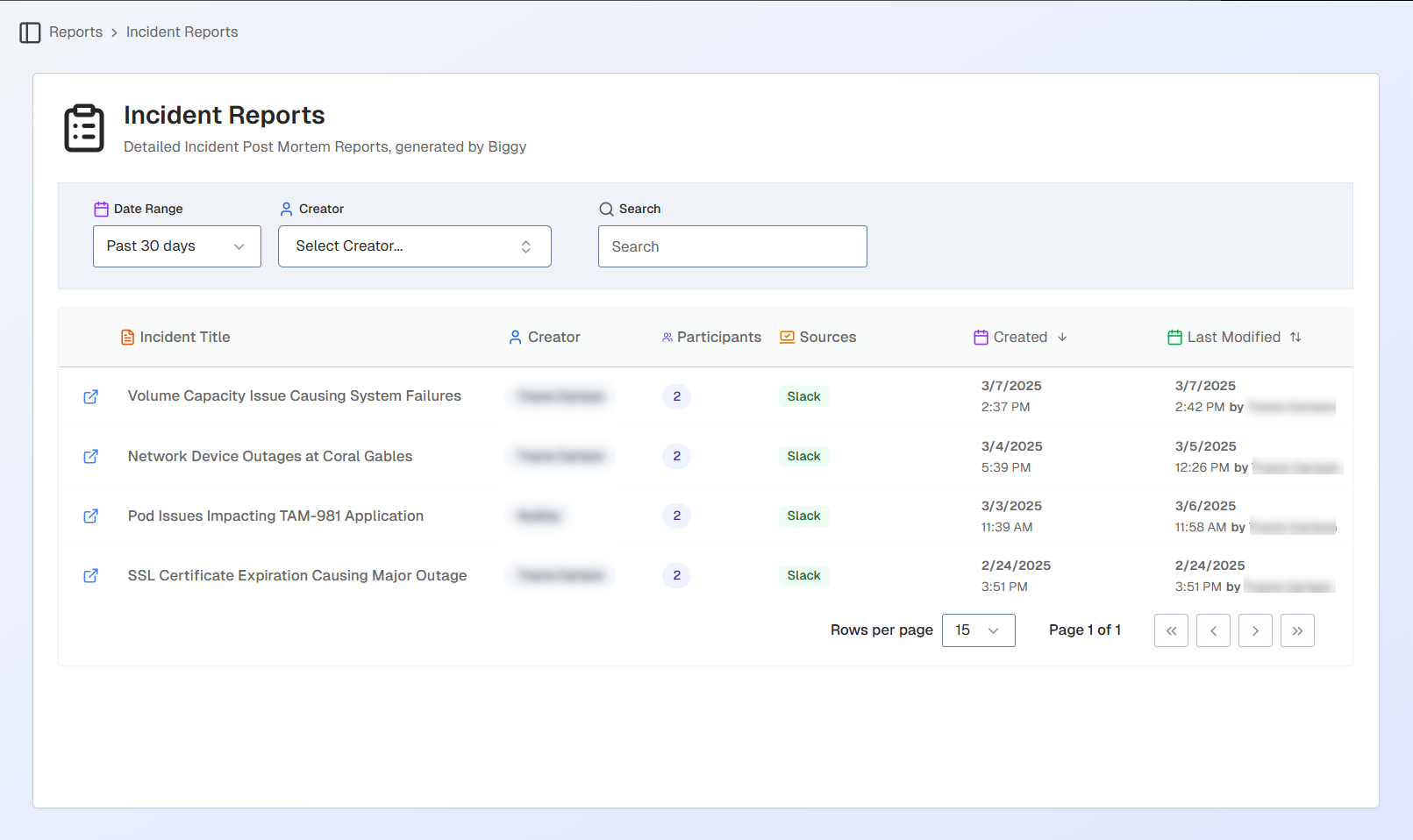
Incident Post-Mortems List
By default, all reports from the last 30 days appear on the page. You can filter the list by a different date or by the incident creator. The list of the reports can be sorted by Created date, or Last modified date.
To find a specific incident report, use the Search bar.
Manage Incident Post-Mortems
Click any post-mortem in the list to open the details screen.
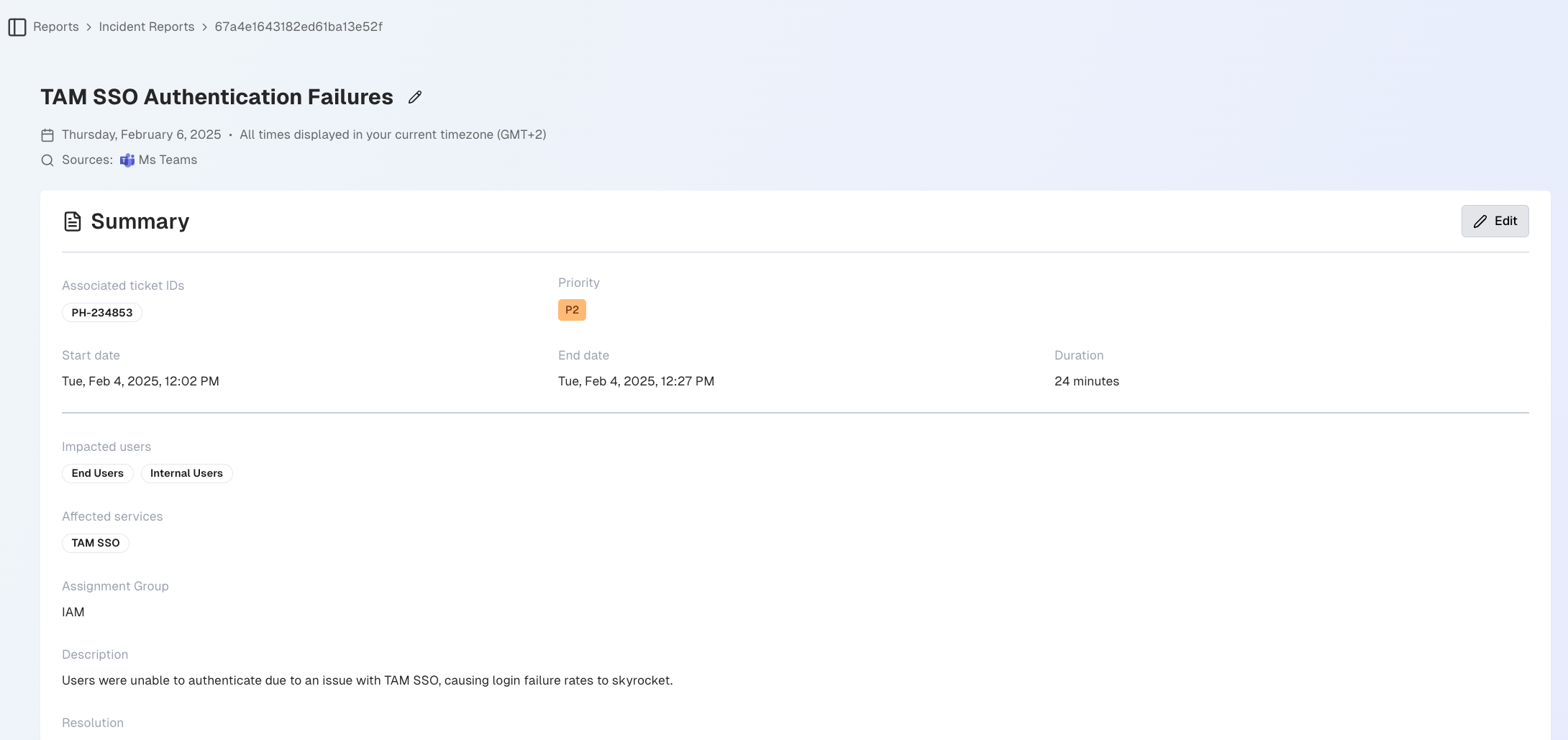
Incident Post-Mortem
Incident post-mortems can be exported as PDF or HTML files by clicking either the Download PDF or Download HTML buttons.
The name of the incident and the time and date it occurred appear at the top. You can click the pencil icon to the right of the title to edit it.
The incident post-mortem is divided into five sections: Summary, Timeline, Action Items, Participants, and Event Log.
Summary
The Summary section provides all of the high-level details of the incident. You can modify any of the summary fields by clicking the Edit button.
Field | Description |
|---|---|
Associated ticket IDs | The ID(s) of the ticket(s) associated with the incident. |
Priority | The priority of the incident. |
Start date | The date the incident started. |
End date | The date the incident ended. |
Duration | The amount of time that the incident lated. |
Impacted users | The groups of users who were impacted by the incident. |
Affected services | The services impacted by the incident. |
Assignment group | The name of the assignment group assigned to handle the incident. |
Description | The incident description generated by Biggy. |
Resolution | The summary of the resolution steps taken to resolve the incident, generated by Biggy. |
Follow-up | The recommended post-incident follow-up steps. |
Timeline
The Timeline section displays all major events related to the incident in chronological order. Within the timeline, you can also see the incident duration and the time it took to detect, assign, diagnose, recover, and resolve.
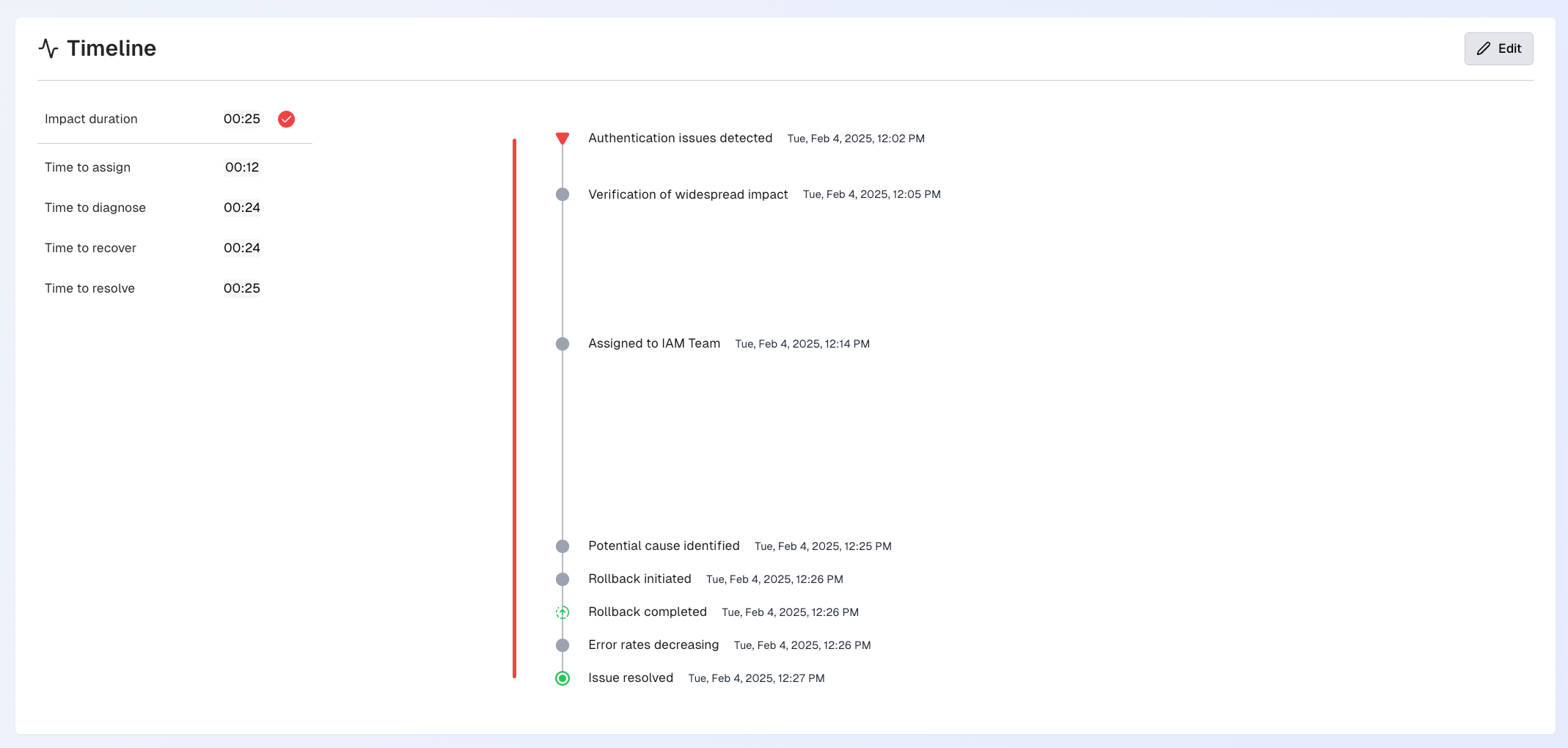
Incident Report Timeline
Click the Edit button to edit, add, or delete events in the timeline.
Each event in the timeline displays the following information:
Field | Description |
|---|---|
Type | The type of event that occurred. The following event type options are available:
|
Source | The system where the event occurred. |
Date | The date and time when the event occurred. |
Title | The title is a short summary of the event. The event title appears in the timeline at a glance. |
Description | A detailed description of the event. |
Follow-up Action Items
The Follow-up Action Items section displays recommended actions based on the incident details.
Follow up items
Follow up items from incident channels become the action items listed in this section.
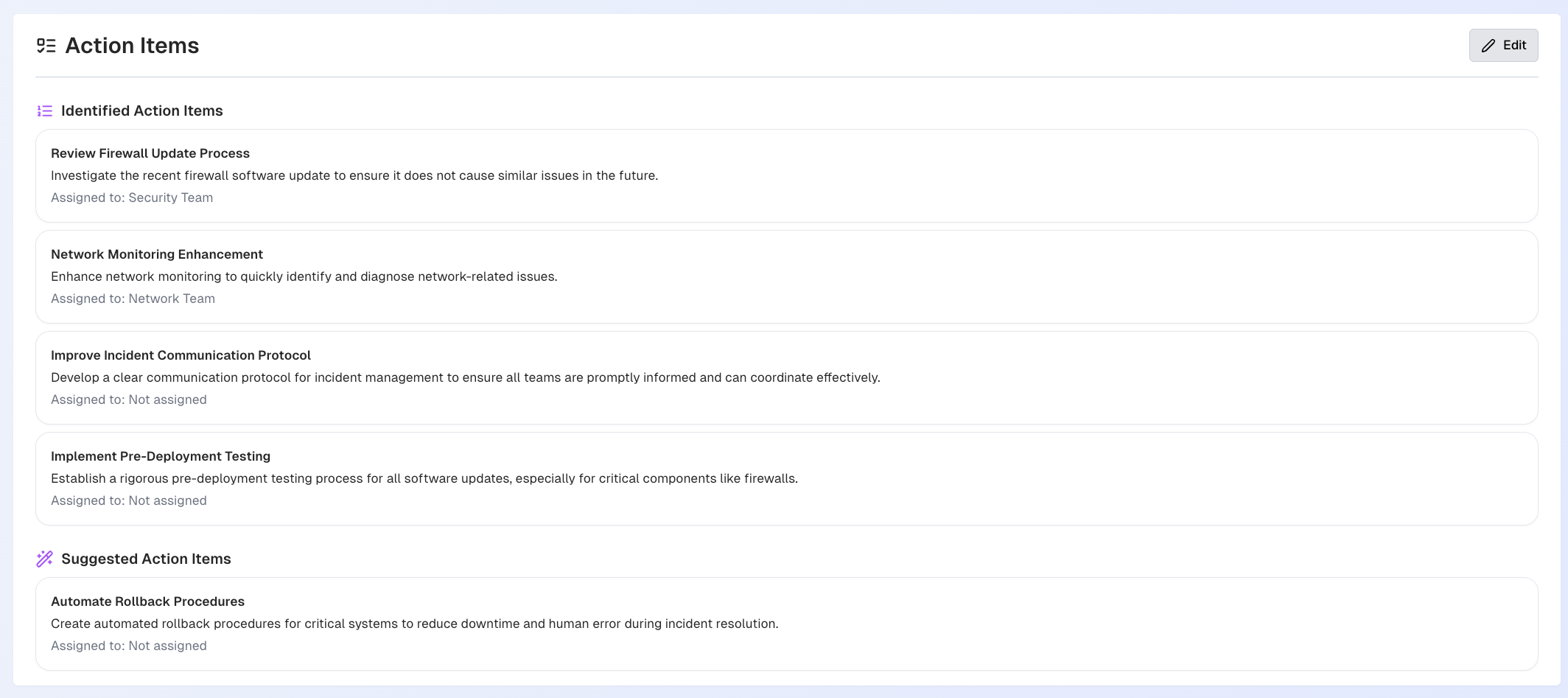
Incident Report Action Items
Identified Follow-up Action Items are the action items that were identified by a participant within the channel.
Suggested Follow-up Action Items are action items that were recommended by Biggy.
Click Edit to edit, add, or delete action items.
Click the Arrow icon next to any action item to send it to an external system such as email, Slack, MS Teams, or ServiceNow.
Participants
The Participants section displays all users who were part of the incident channel.
Click the arrow on the right side of the participant row to view additional information. Details appear for each participant:
Title
Phone number
Email
Timezone
Contributions
Participants may be given a badge depending upon their level of contributions to resolving the incident. The following badges are available:
Helpful AIOps Copilot - automatically given to Biggy.
Top Contributor - awarded to individuals whose actions, expertise, and coordination efforts were instrumental in managing the incident's impact and recovery.
Key Contributor - awarded to those who significantly contributed to handling the incident as a key supporting part of the team.
Click Open in Slack to open the user's Slack profile.
Event Log
The Event Log is a comprehensive list of all activities that took place in the incident channel. You can click any event in the log to open the conversation in Slack.
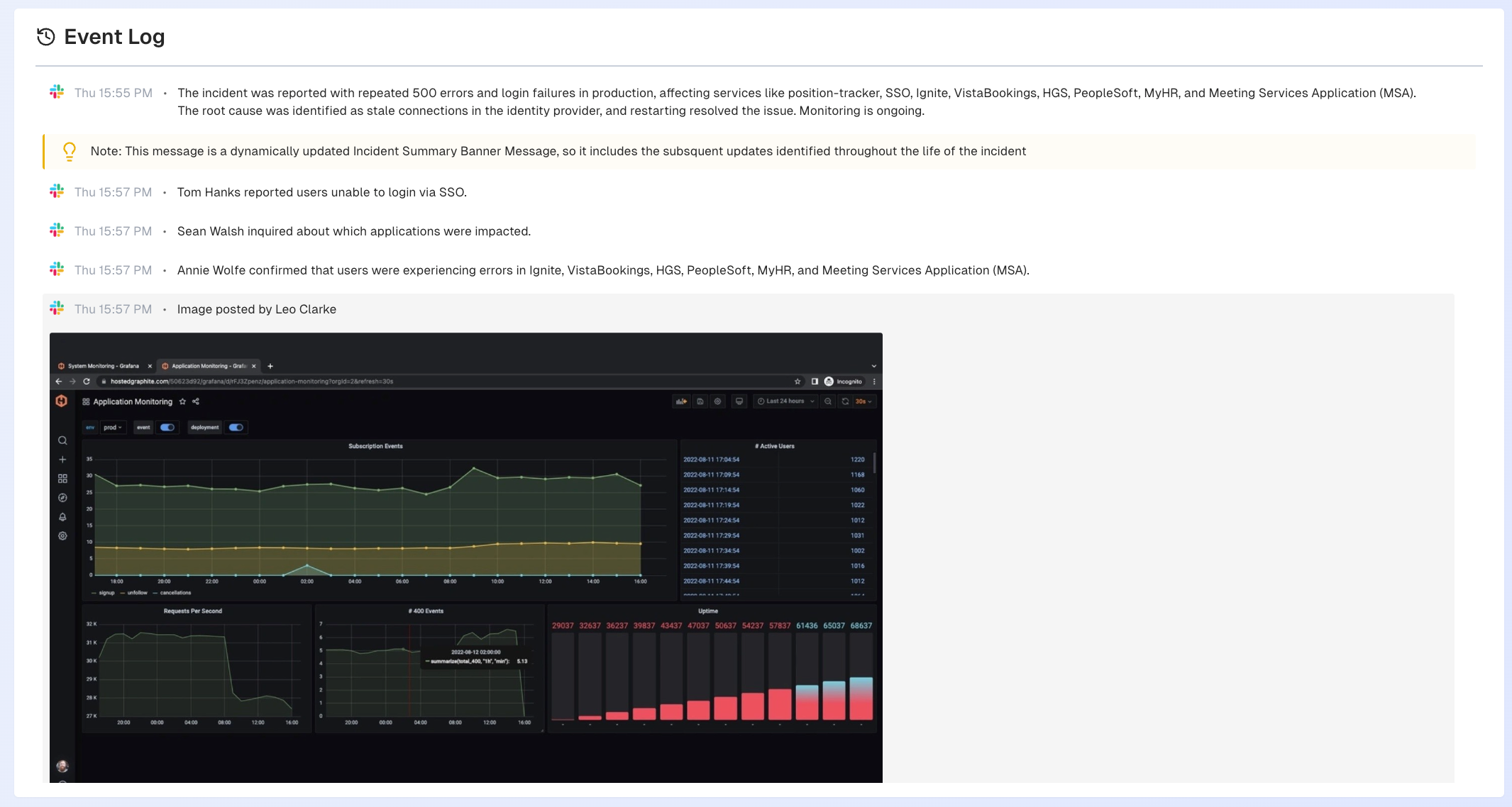
Incident Report Event Log