Channel Hawks
.
Channel Hawks
Channel hawks allow AI Incident Assistant to watch a channel for specific messages that trigger an agentic workflow. Workflows can invoke one or more Action Plans or follow specific prompts that you create.
Channel hawk example
You could set up a channel hawk in an on-call channel that watches for messages asking who the current on-call point of contact is. When AI Incident Assistant detects messages containing these phrases, it then runs the On-Call Retrieval action plan and posts a message in the channel.
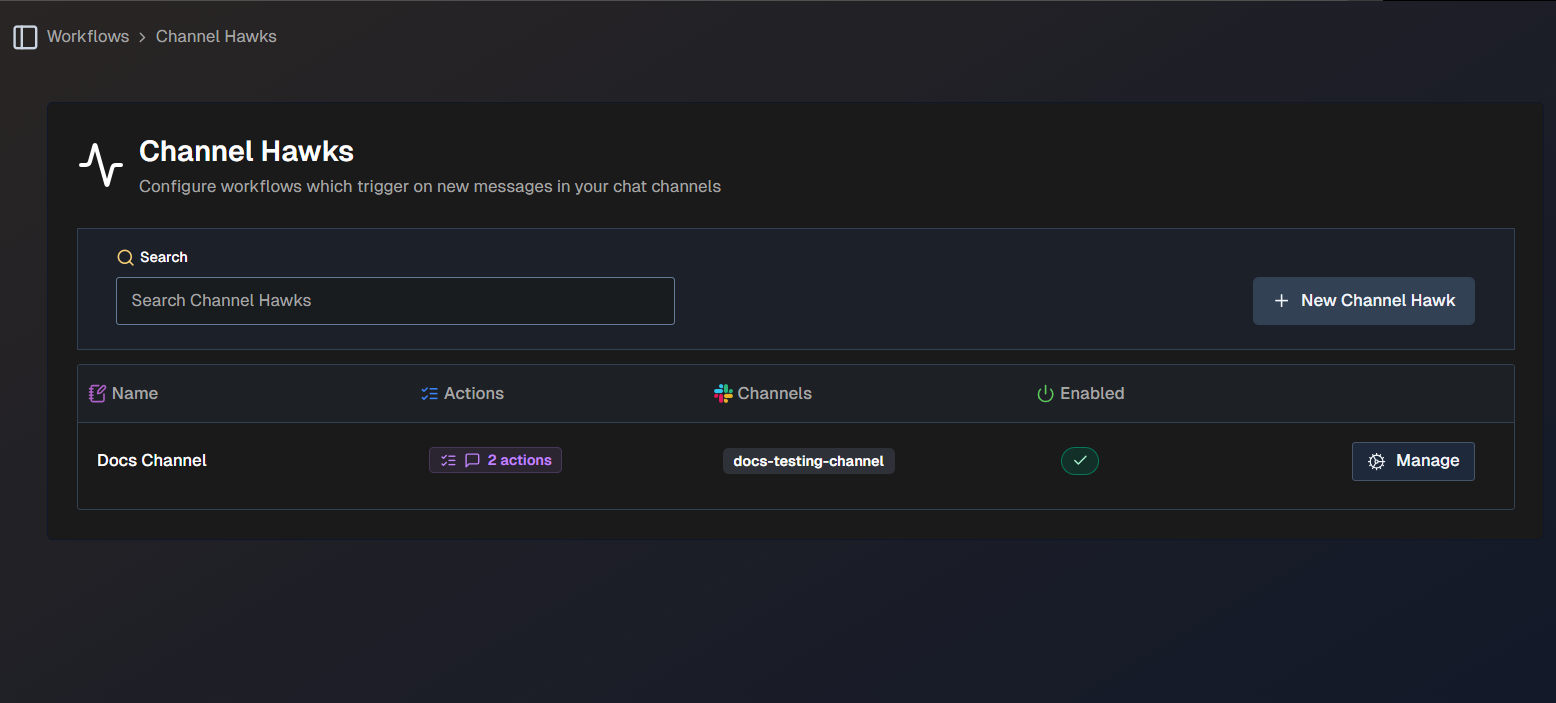
The following information about each channel hawk is displayed in the list:
Name - the name of the channel hawk.
Actions - the number of actions configured for the channel hawk. Hover over the number to view the types of actions.
Channels - the channel(s) where the channel hawk is configured.
Enabled - whether or not the channel hawk is enabled.
Click the Manage button next to any channel hawk in the list to view, edit, or delete it.
Use the Search bar at the top of the page to find a specific channel hawk.
Generate a New Channel Hawk
AI Incident Assistant can automatically generate channel hawks based on a short description of a workflow.
Example description
Below is an example of a workflow description prompt:
Generate a detailed troubleshooting workflow which includes observability data, ITSM data, and provides a detailed summary of the findings.
To generate a new channel hawk:
On the Channel Hawks page, click + New Channel Hawk.
In the upper right corner of the page, select Generate Workflow.
In the Workflow Generator window, enter a Description of the workflow you'd like to create. Be sure to include clear, detailed instructions in plain language.
Click Generate Workflow.
The Channel Hawks configuration page is populated based on your description. Review each field to ensure that the workflow meets your needs.
Detailed descriptions of each field are available in the Manually Create a New Channel Hawk instructions.
If you want to start over, click Rollback to erase the content from all fields. To add information to the prompt, click Refine and enter additional instructions. If the content looks good, click Accept.
Once you are satisfied with the content, scroll to the bottom of the page and click Save.
Manually Create a New Channel Hawk
You can create a new channel hawk from scratch without using AI Incident Assistant's generation feature.
To create a new channel hawk:
On the Channel Hawks page, click + New Channel Hawk.
In the Create Channel Hawk section of the screen, configure the following fields:
Field
Description
Enabled
Use the Enabled toggle to choose whether the channel hawk will be enabled or disabled upon creation.
Name
Enter a descriptive name for the channel hawk.
Slack/Teams Channels
Select one or more channels where the channel hawk will watch for triggers.
Always Respond
When enabled, AI Incident Assistant will always post a workflow result message, even if it does not find any useful information.
In the Trigger Condition section, specify when AI Incident Assistant should execute the workflow. You can enter a specific prompt, or select Always Execute to always run the workflow.
Generation Mode
Use the Generation Mode button to allow AI Incident Assistant to generate a prompt based on your input.
(Optional) In the Result Message Prompt section, customize how AI Incident Assistant combines and formats the outputs from all workflow actions into a single message. Enter a specific prompt, or use the Generation Mode button to allow AI Incident Assistant to generate a prompt based on your input.
Behavior without a custom prompt
Without a custom prompt, AI Incident Assistant will generally default to displaying each action's output separately in sequence.
In the Actions section, you can add actions that AI Incident Assistant will take when the channel hawk is triggered. Click + Add Action to create an action.
In the Create Workflow Action screen, configure the following fields:
Field
Description
Action Type
Select whether you would like the workflow to be based on a System Prompt or Action Plan.
System Prompt
This field only appears if you select System Prompt in the Action Type menu.
Enter a system prompt with instructions for what AI Incident Assistant should do when this workflow action is executed. Use the AI Generation button to allow AI Incident Assistant to generate a prompt based on your input.
Action Plan
This field only appears if you select Action Plan in the Action Type menu.
Select an action plan that will be performed when the workflow action is executed.
Prompt Addendum (Optional)
This field only appears if you select Action Plan in the Action Type menu.
Enter a prompt addendum containing additional instructions for the action plan.
(Optional) Repeat steps 6-7 to add additional actions.
Click Save.