Change Analytics
.
Change Risk Analytics
The Change Risk Analytics page provides a high-level analysis of changes in your IT environment for a specific time period. You can access this page within the web app in the Analytics section.
Use the drop-down menus at the top right of the screen to adjust the selected time period, Change Risk Profile, or time zone.
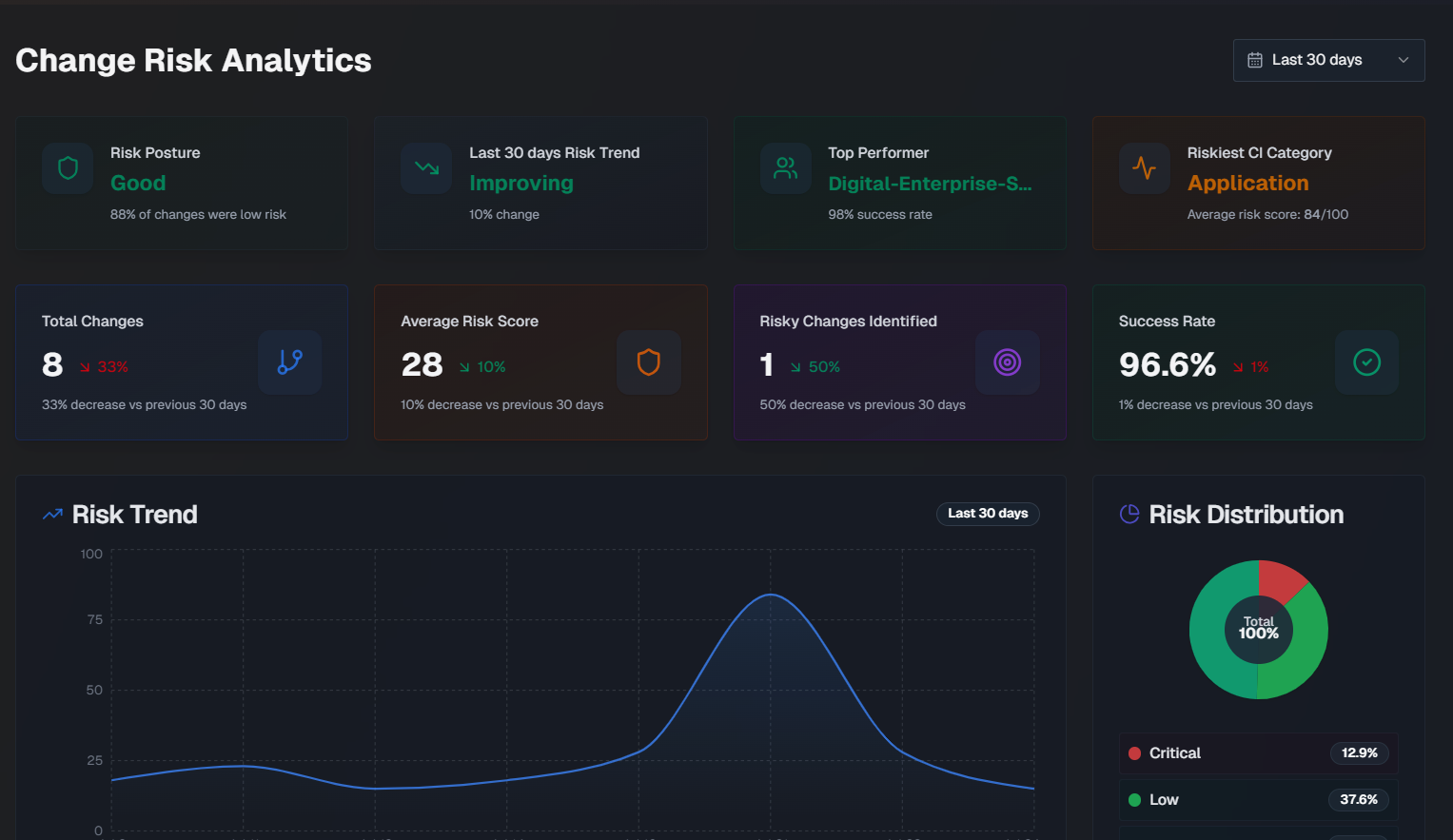
The page is separated into three tabs:
Overview
The following widgets are available in the Overview tab:
Widget | Description |
|---|---|
Risk Posture | How well your organization is doing from a change risk perspective. This score is based on the percentage of changes that were considered low risk. |
Risk Trend | Whether your organization's change risk scores are getting better or worse, and the percent change over the selected time period. |
Top Performer | The team that deployedchanges with the lowest average risk score, and their success percentage. |
Riskiest CI Category | The configuration item (CI) category with the highest average risk score. |
Total Changes | The total number of changes, and the percent change for the selected time period. |
Average Risk Score | The average risk score across all changes, and the risk score percent change for the selected time period. |
Risky Changes Identified | The percent of changes that were identified as high risk, and the risk score percent change for the selected time period. |
Success Rate | The average success rate of changes, and the risk score percent change for the selected time period. |
Risk Trend | A graph displaying therisk scorechange over the selected time period. Hover over a specific day on the graph to see the average risk score for that day. |
Risk Distribution | A pie chart displaying the distribution of change risk levels. |
Team Change Health | A comparison of each team's percentage of successful changes, and the number of risky changes. The calculation for success rate is (total changes - incidents caused) / total changes. |
Risk by CI Category | Risk information for changes grouped by the category of their affected CIs. For each CI, the number of changes, incidents, success percentage, average risk score, and number of incidents that were either critical or high severity. |
Riskiest Times to Deploy | The riskiest times to deploy, broken down by Riskiest Day and Riskiest Time. Riskiest Day shows the average risk score by day of the week for changes scheduled in the selected time period. The riskiest day and safest day are highlighted below the full week. Riskiest Time is an hourly risk analysis shown in your local time zone. The riskiest time and safest time are highlighted below the full day. |
Risk Score Averages and Weights | Shows the average risk score for each risk component across all analyzed changes, and the component's relative importance (weight). |
Causality and Prediction Quality
The Causality & Prediction Quality tab of the Change Risk Analytics dashboard displays data on incidents caused by changes.
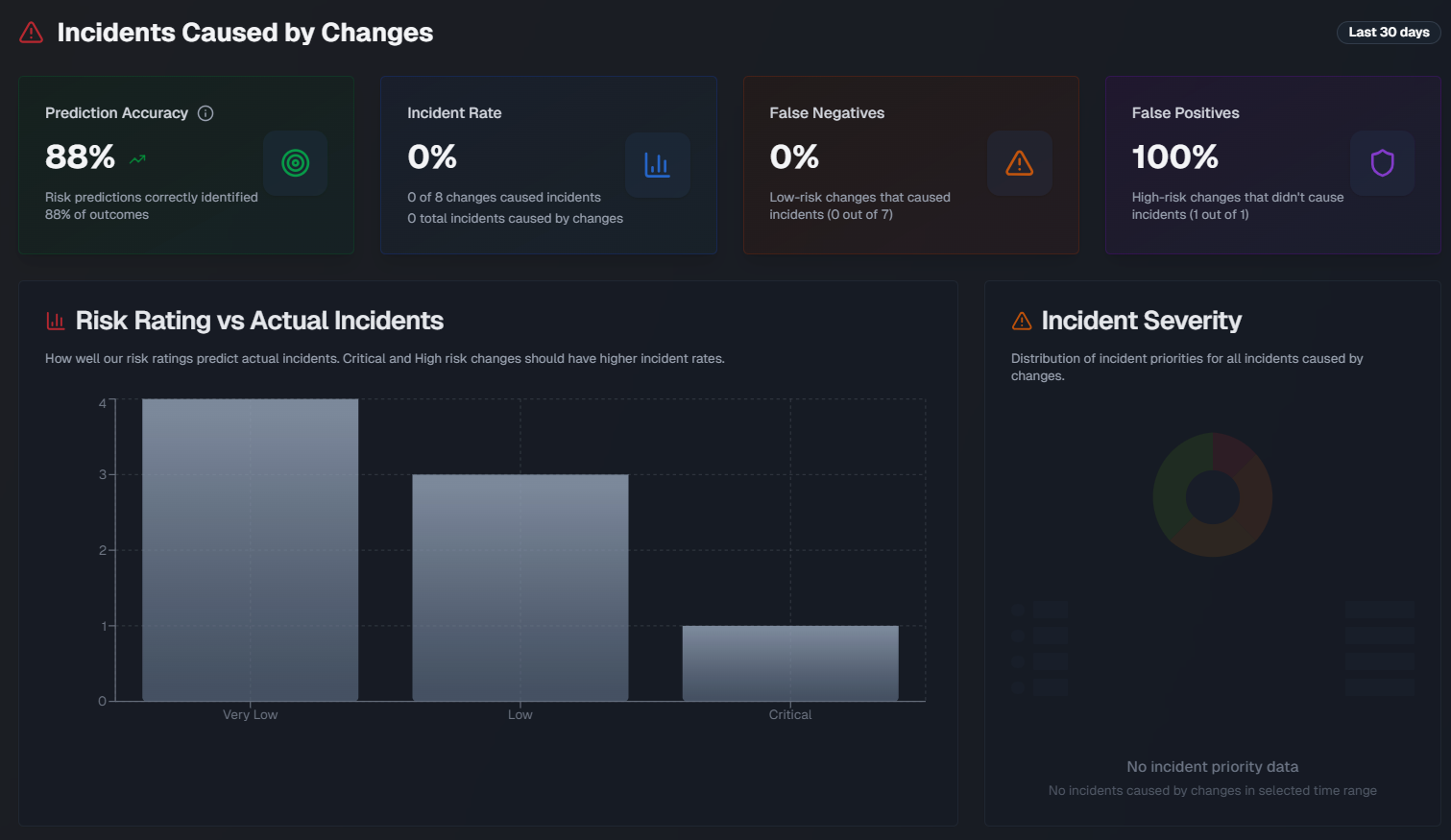
The following widgets are available in this tab:
Widget | Description |
|---|---|
Prediction Accuracy | The percentage of risk predictions that accurately identified the outcome of the change. Prediction accuracy is measured using the following calculations:
The formula is (True positives + True negatives) / Total Changes x 100 Medium risk changes are excluded from the calculation. |
Incident Rate | Displays the percent of changes that caused an incident, the number of changes that resulted in an incident out of the total number of changes, and the total number of incidents caused by changes. |
False Negatives | The percent of low-risk changes that resulted in an incident. |
False Positives | The percent of high-risk changes that didn't cause an incident. |
Multi-Incident Change Rate | The percent and number of changes out of the total that led to two or more incidents. |
Average Time to First Incident | The average amount of time it took for a change to cause an incident. |
Risk Rating vs. Actual Incidents | A bar chart showing how well risk ratings predict incidents, broken down by the risk level. Hover over a section of the chart to see the number of changes with or without incidents for that risk level. |
Incident Severity | A pie chart showing the distribution of incident priorities for all incidents caused by changes. |
Incident Timeline | A line graph showing a daily view of changes vs. incidents caused by the change over the selected time period. Hover over a specific day to see the number of changes that were implemented and the number of incidents that occurred on that day. |
Teams Causing the Most Incidents | Assignment groups causing the most incidents from their changes. |
Changes that Caused the Most Incidents | Changes that directly caused incidents, showing change details and related incident information. |
Flow Analysis
Use the Flow Analysis tab to explore how changes flow through dimensions with an interactive Sankey diagram.

In the top section of the page, adjust the flow layers and metrics in the diagram.

Several preset flow layers are available with common use cases:
General Flow - see how changes flow from teams, through CI categories, to outcomes
Risk Attribution - understand which risk factors drive the highest ratings
Declared vs. Actual - compare human-declared risk to AI-assessed risk ratings
Incident Pathways - trace organizational and technical pathways that lead to incidents.
You can also manually adjust flow layers. Click a field to add it to the flow layer, or drag and drop the fields to change the order they appear in the flow.
Select a Metric from the drop-down menu to choose what metric the diagram should be based on. Select from:
Change count
Average risk score
Incidents caused
Use the Top N per layer drop-down to select the number of layers to display in the diagram.
Hover over a section of the diagram to highlight the flow layer. Additional information about the layer, including the number of changes that match the path appears.