Transcripts
.
Transcripts
In the Transcripts dashboard, view and manage transcripts from calls that were recorded using Biggy's Transcribe a Call feature.
Transcript retention
Transcript content for meetings is only available until the retention period expires.
The default retention period is 7 days. If you'd like to update your organization's retention period, contact your BigPanda account team.
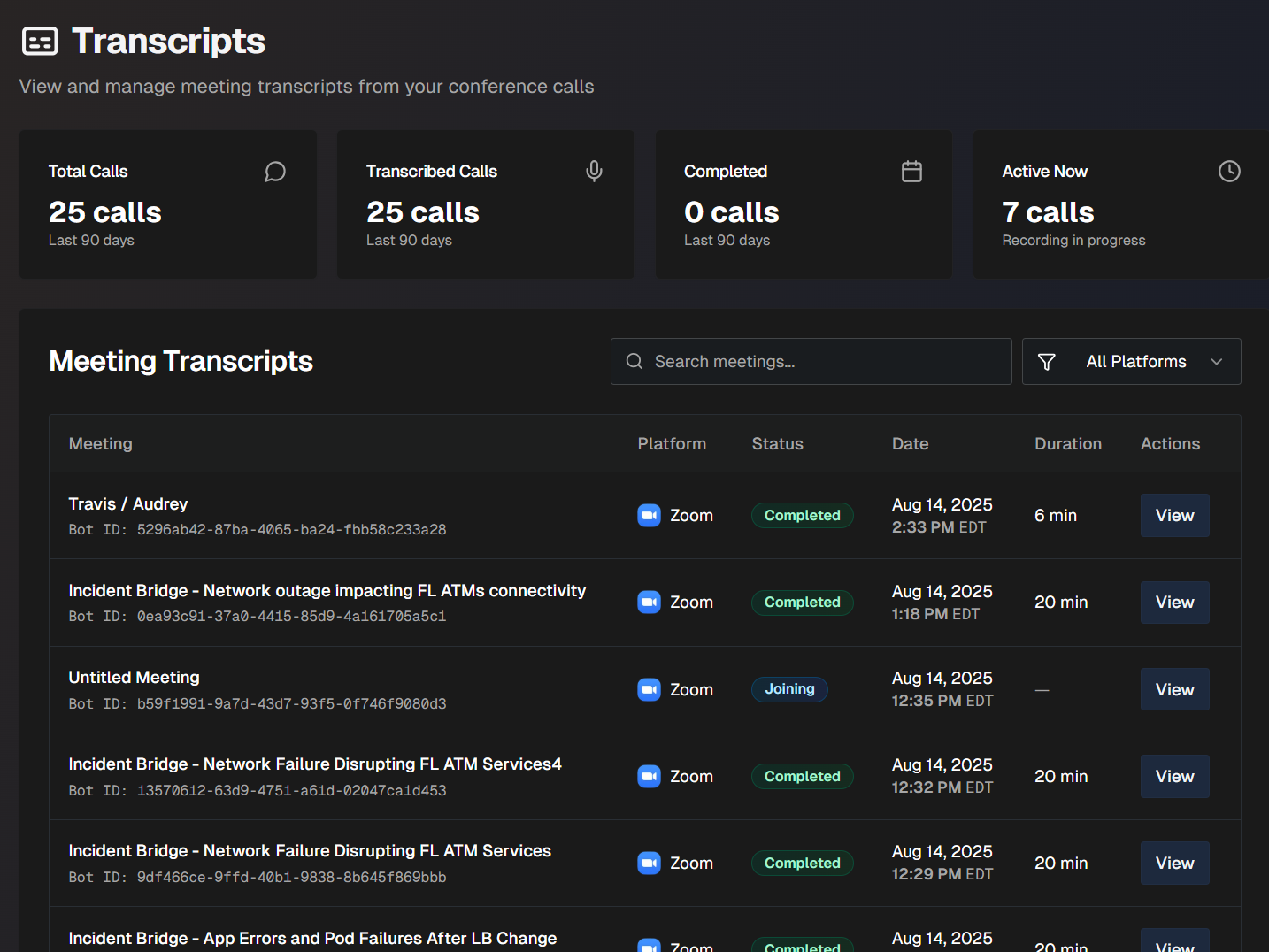
The top of the Transcripts dashboard displays statistics about recorded calls. The following information is available:
Total calls - all calls that Biggy transcribed, and all calls that AI Incident Assistant started as part of a managed incident channel (even if the call was not transcribed)
Total transcribed calls - all calls that Biggy transcribed
Total completed calls - number of calls that were completed
Total active calls currently in progress - number of calls that are active, but have not been completed yet.
To find a specific transcript, use the Search Meetings box, or use the Filter to narrow the list by individual platforms.
The following information about each transcript appears on the dashboard:
Field | Description |
|---|---|
Meeting | Descriptive name of the meeting and the unique bot session ID associated with it. Click the Pencil icon to edit the name of the meeting. |
Platform | The name of the conferencing platform that was used to host the meeting. |
Status | Whether the call has been completed. |
Date | The date and time that the call started. |
Duration | How long (in minutes) the call lasted. |
If a transcript is no longer needed or was mistakenly recorded, click the Trash Can icon to delete it from the dashboard.
Deleted transcript indexing
If your organization has indexing enabled for transcripts, the summarized deleted transcript will still be part of your organization's long-term knowledge. See the Indexing Settings documentation for more information.
Transcript Multi-Select Mode
Use the Multi-Select mode to generate content based on multiple transcripts. Simplify review by combining summaries for situations where multiple calls were needed for a single incident or issue.
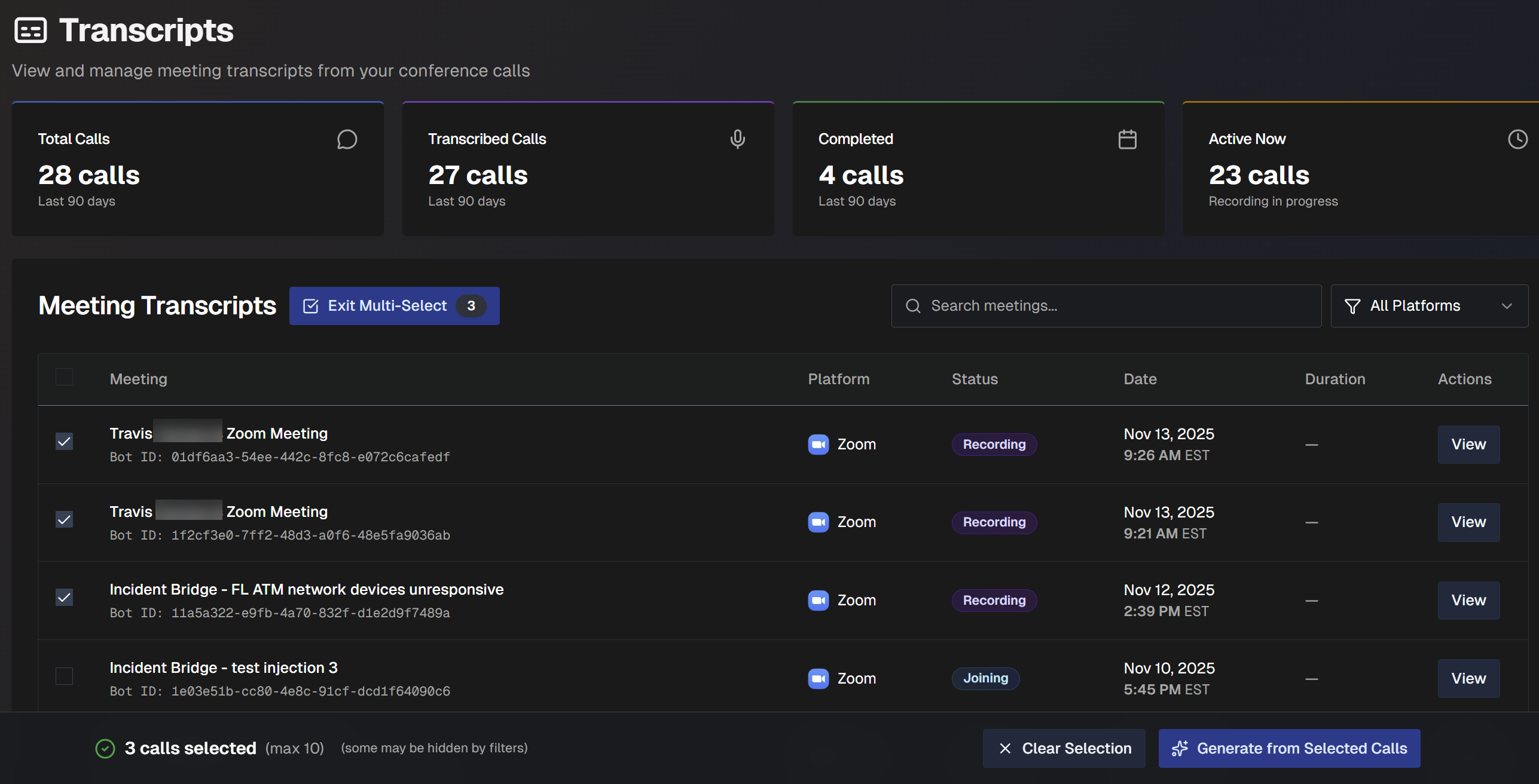
To use multi-select mode:
On the Transcripts dashboard, select the Multi-Select Mode button.
Select the desired transcripts from the list.
Select Generate from Selected Calls.
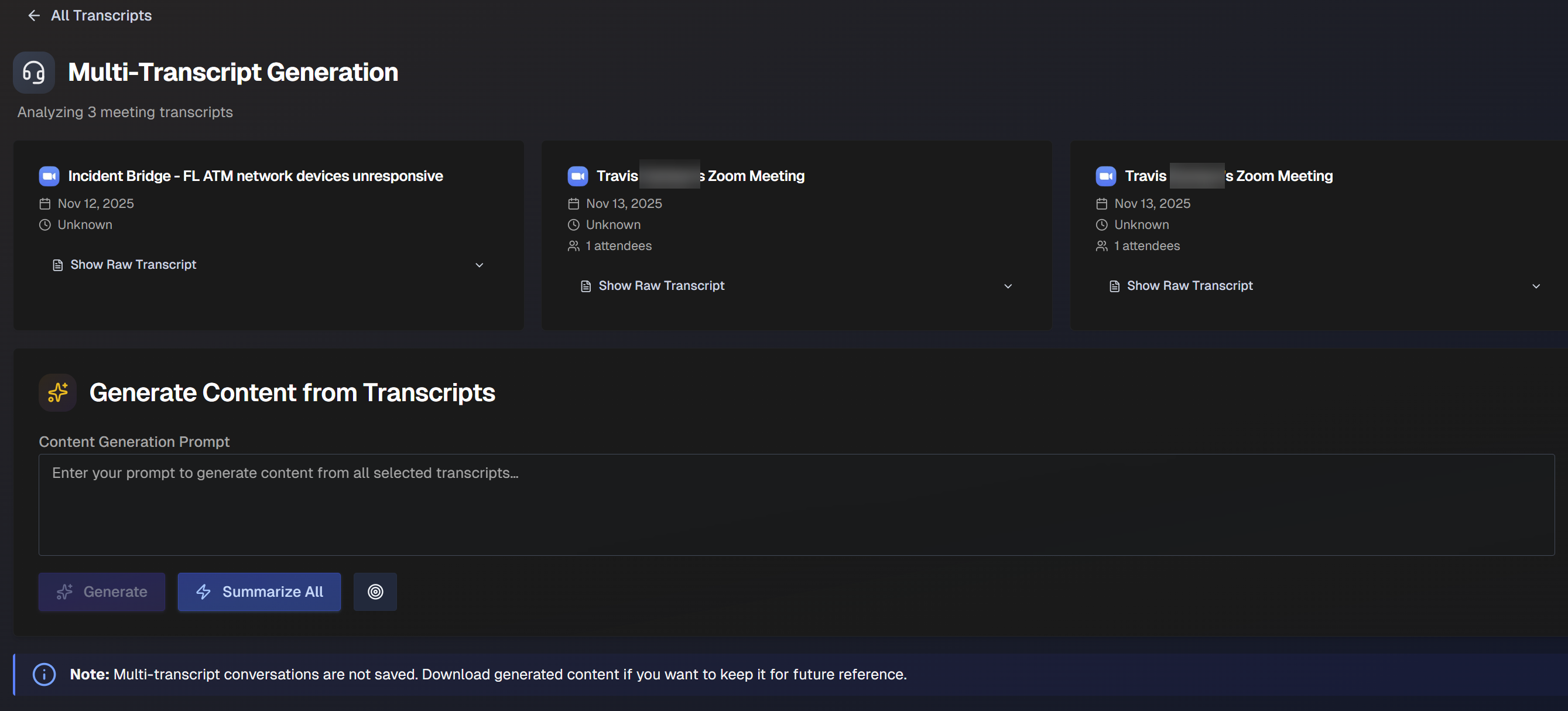
In the Multi-Transcript Generation page, you can view details about the selected calls and the raw transcripts. Review the content as needed.
In the Generate Content from Transcripts box, ask Biggy to generate content based on custom prompts or preset options. The following options are available:
Content Generation Prompt - enter a custom prompt to generate content from the selected transcripts.
Summarize All - ask Biggy to create a comprehensive summary of the calls.
Use Goal Preset - use one of the goal presets to generate content. Biggy has global presets available, or you can use one of the custom presets defined in the Call Transcription action plan.
(Optional) Click the Copy icon to copy Biggy's response, or the Document icon to download it as a Word document.
Content not saved
Content generated from multi-transcript conversations is not saved in the web app. Be sure to copy or download content to save it for future reference.
(Optional) If you need additional information, enter a prompt into the Ask a follow up box, or select one of the Presets. Click Ask.
View a Transcript
To see additional details and a full transcript for a call, go to the desired meeting in the list and click View.
The full transcript screen shows you meeting details, including a timeline, full transcript, and speaking time analysis. You can copy the full transcript or download it as a text file at the top of the page.
Leaving calls
Biggy will leave a call if it remains silent for an extended period. If a call is silent for 5.5 hours, Biggy will exit the call.
If all members exit a bridge call that is being transcribed, Biggy will end the transcription 10 minutes after the last call member leaves.
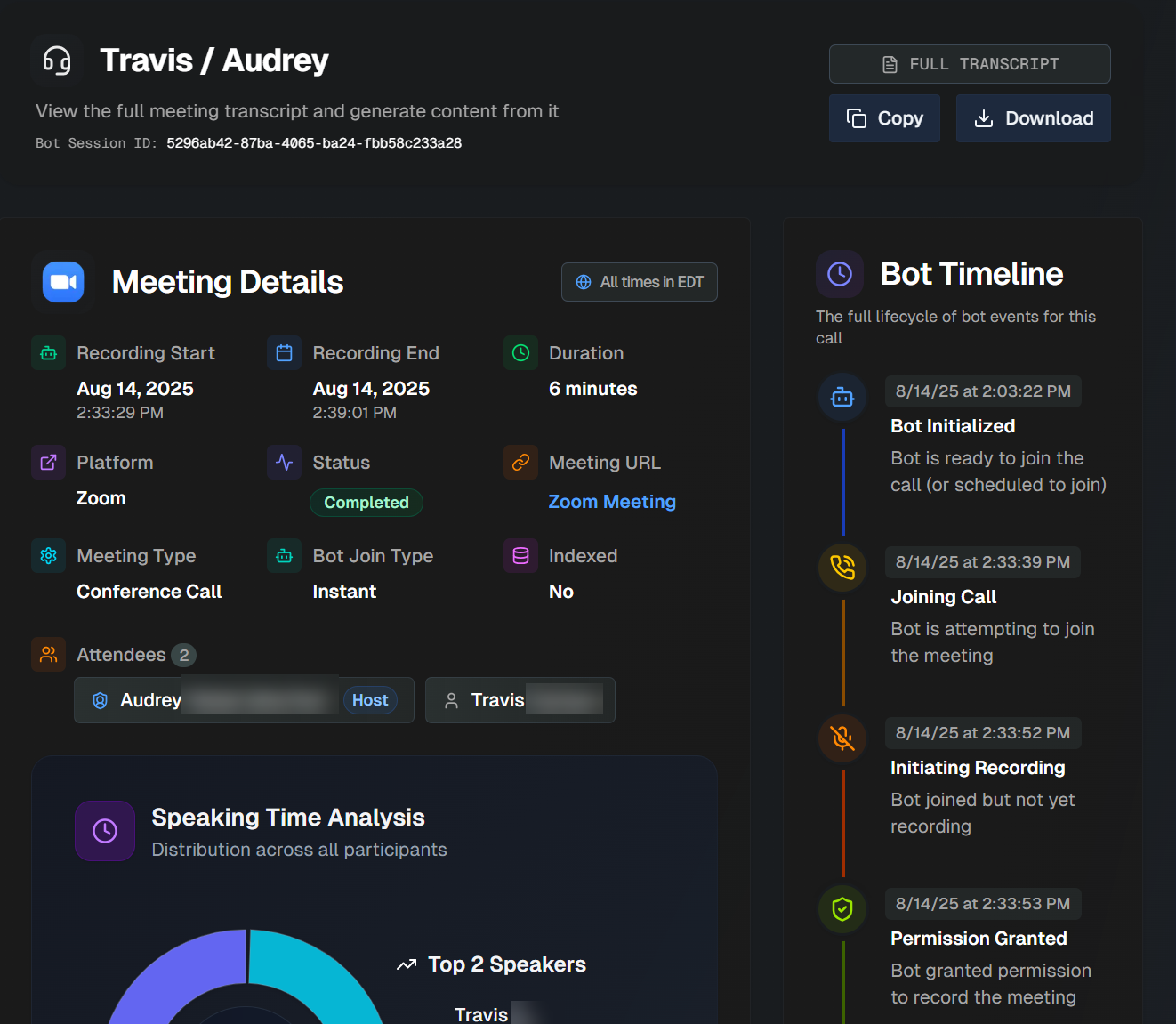
The details page is divided into the following sections:
Meeting Details
The Meeting Details section shows you high-level information about the call. The following information is available:
Field | Description |
|---|---|
Recording Start | The date and time that the recording began. |
Recording End | The date and time that the recording ended. |
Duration | How long the recording lasted, in minutes. |
Platform | The conferencing platform used to host the call. |
Status | Whether the call is scheduled, in progress, or completed. |
Meeting URL | The URL of the call. |
Meeting Type | The type of meeting that occurred. Options include:
|
Bot Join Type | How Biggy joined the call. Options include Instant or Scheduled. |
Indexed | Whether or not the content of the meeting was indexed by Biggy. |
Attendees | The names of the attendees who participated in the call. Hover over a name to view additional details such as whether they were the host, if they spoke in the meeting, and the time that they joined the meeting. |
Bot Timeline
The Bot Timeline section displays the full lifecycle of bot events for the call. This includes Biggy's automated events, such as when it joined the call, started recording, and ended the call.
Speaking Time Analysis
The Speaking Time Analysis displays a breakdown of which participants spoke throughout the call and for how long.
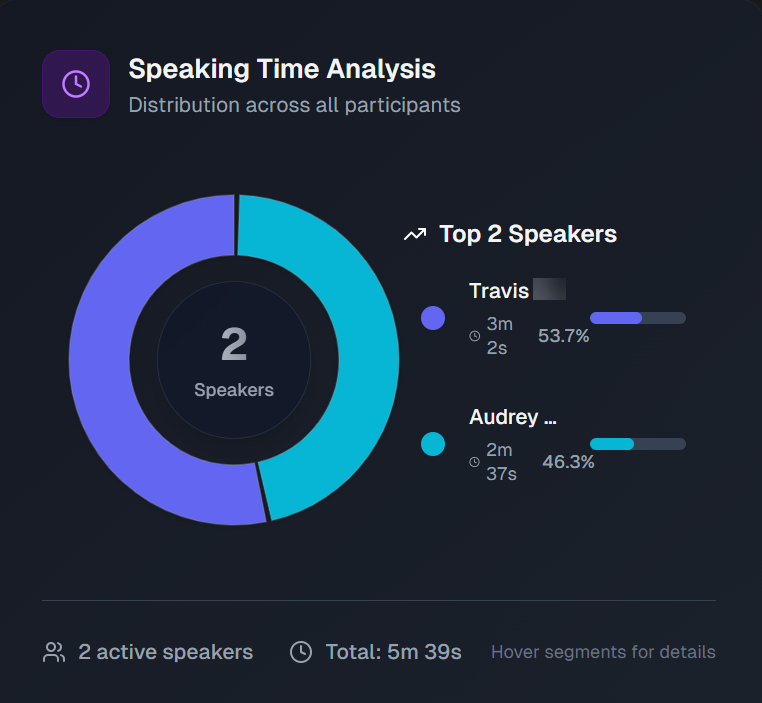
Hover over a segment of the pie chart to find additional details such as participant name, percent of call time spent speaking, and amount of time spent speaking.
Generate Content from Transcript
You can use the call transcript to create supplementary content, or ask Biggy to format the transcript a specific way.
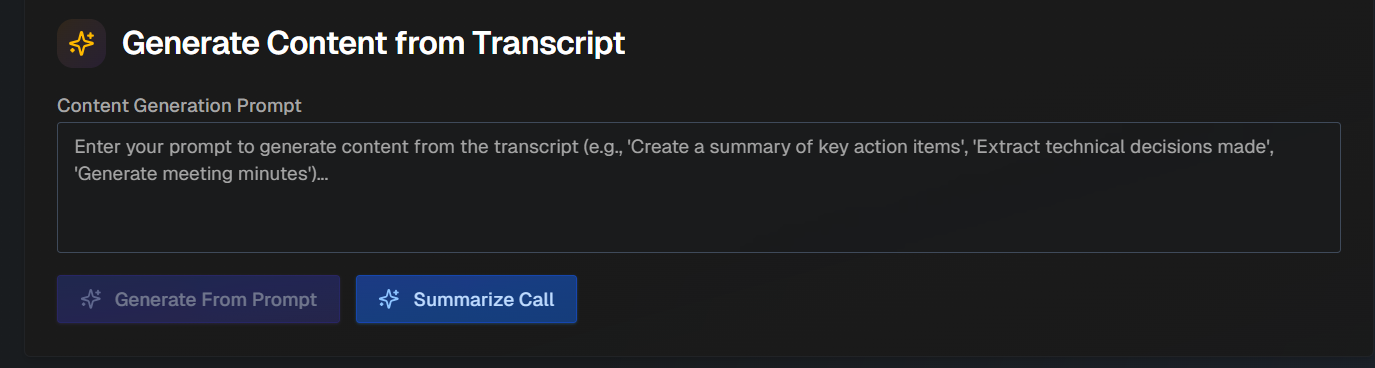
For example, you can ask Biggy to extract a list of key decisions made on the call or to remove all filler words from a call transcript.
Type your prompt into the box and click Generate From Prompt. Click Summarize the Call to create a shortened call summary.
The generated content appears below the box. Click Copy to copy the content, or click Download to download the content as a text file.
Raw Transcript & Chat
The Raw Transcript & Chat section displays the full raw transcript of the call.
Transcript expiration
The expiration date of the transcript appears at the top of the Raw Transcript & Chat section.
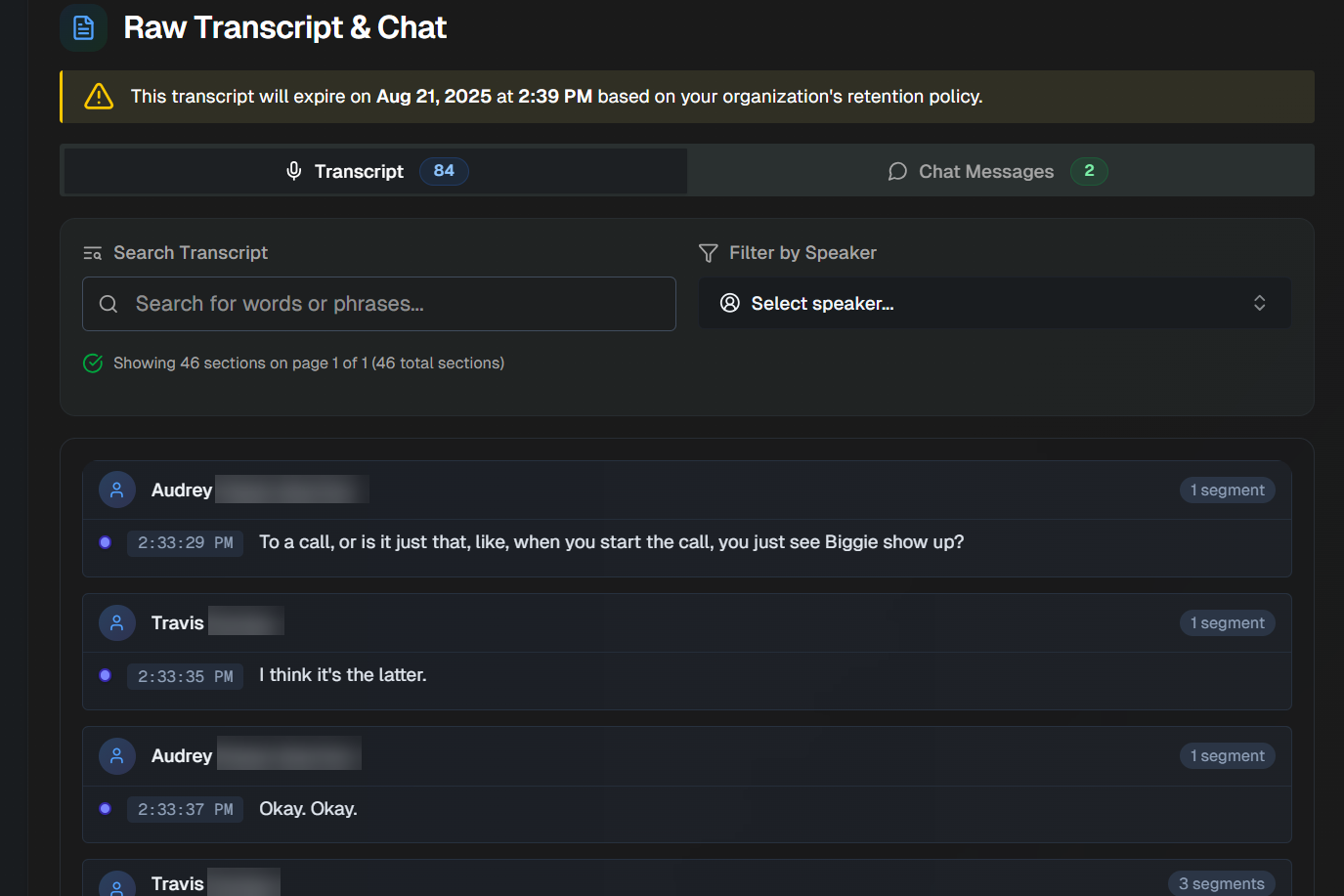
Select the Transcript tab to view all transcribed speech from the call. Select the Chat Messages tab to view written chat messages that were captured from the call.
Use the search box to search for a specific keyword or phrase spoken on the call. Use the Filter to view what was said by a specific speaker.
The transcript is divided into segments by speaker. The timestamp for each segment appears on the left side of the box.