Large Context Analysis
Use the Large Context Analysis dashboard to conduct comprehensive incident and data analysis, problem discovery, and trend identification with AI Incident Prevention's specialized deep research pipeline. Proactively identify the top priority problem areas based on historic incidents and root cause so that your team can focus on the most relevant and high-value problems.
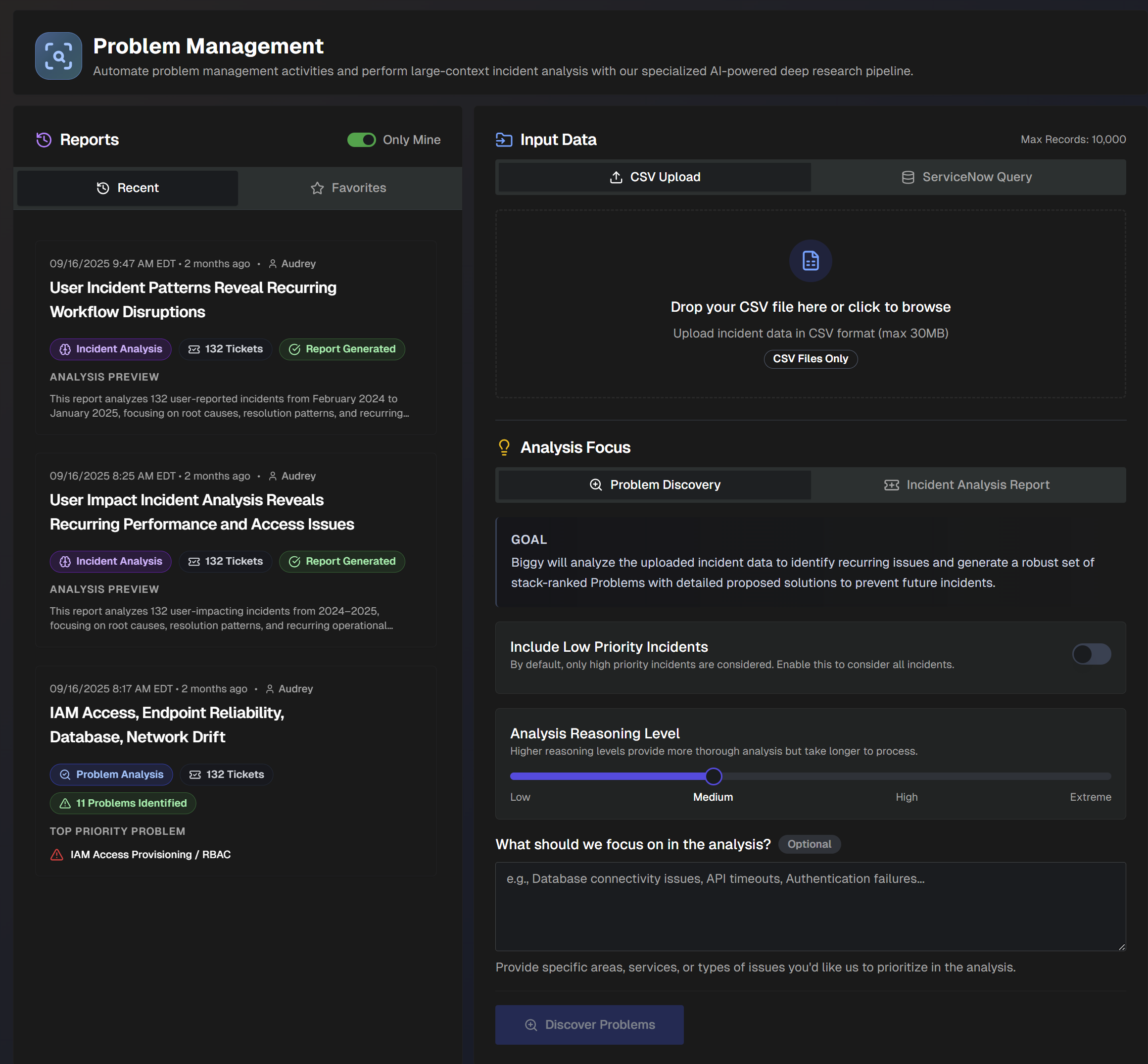
Create Large Context Analysis Reports
On the Large Context Analysis page, upload a CSV file (maximum size of 30MB) of your ServiceNow or Jira tickets or data, or use a ServiceNow query to create insightful analyses.
Use the data to generate Problem Analysis, Incident Analysis, or Dataset Insights Reports.
Problem Analysis
Problem Analysis reports analyze incident data to create a set of ranked problems with clear, actionable solutions to prevent future incidents. Create Problem Analysis reports using a CSV file or ServiceNow query.
Create a Problem Analysis Report using a CSV File
Problem analysis reports analyze incident data to identify recurring issues. This analysis type generates a report containing a set of problems ranked by priority with detailed solutions to help prevent future incidents.
To generate a problem analysis report using a CSV file:
In the Input Data section, select CSV Upload. Drop in a CSV file of incidents from ServiceNow or Jira, or click to browse your computer for a file. (Maximum size 30MB.)
Under Analysis Focus, select Problem Discovery.
Populate the following information:
Field
Description
Include Low Priority Incidents
Toggle on to include low-priority incidents in the report. Toggle off to only include high-priority incidents.
If there is a specific way that you'd like the LLM to determine priority, include those instructions in the What should we focus on in the analysis? field.
Analysis Reasoning Level
Select the level of reasoning that should be used to generate the analysis.
Higher reasoning levels provide a more thorough analysis, but take longer to generate.
What should we focus on in the analysis? (Optional)
Enter what you would like to focus on in the analysis.
Provide specific areas, services, or types of issues. (For example, database connectivity issues, API timeouts, authentication failures, etc.)
Click Discover Problems. A link to the report will populate on the left side of the screen in the Reports panel.
Create a Problem Analysis Report using a ServiceNow query
Problem analysis reports identify recurring issues using incident data. Generate a report containing a set of problems ranked by priority with detailed solutions to help prevent future incidents.
You can create the analysis for a specific set of incidents by querying ServiceNow. For example, query to find incidents from within a specific date range, incidents caused by a specific change, or incidents associated with a specific assignment group.
To generate a problem analysis report using a ServiceNow query:
In the Input Data section, select ServiceNow Query.
Previous Queries
If you've used ServiceNow queries in the past, you can select one in the Previous Queries drop-down menu rather than creating a query from scratch.
Under ServiceNow Table, click the drop-down menu and select a ServiceNow table to query.
Under Filter Conditions, build your ServiceNow query. The following query building options are available:
Add Condition - select a Field, Operator, and Value. If you enter more than one condition, you can adjust the root level operator between conditions to AND or OR.
Create Group - add a group of conditions. You can adjust the root-level operator between conditions or groups to AND or OR.
Record limit
Queries must yield fewer than 10,000 records.
Best practice
We recommend adding a condition to limit the query to a specific date range whenever possible.
Under Fields to Retrieve, select all of the fields necessary for your analysis. We recommend avoiding unnecessary fields to improve report quality.
Click Validate Query to test your query. If the query results in more than 10,000 records, you'll need to adjust the filters to have fewer records.
Once the query has been validated, click Confirm & Pull Records to retrieve the records from ServiceNow.
Under Analysis Focus, select Problem Discovery.
Populate the following information:
Field
Description
Include Low Priority Incidents
Toggle on to include low-priority incidents in the report. Toggle off to only include high-priority incidents.
If there is a specific way that you'd like the LLM to determine priority, include those instructions in the What should we focus on in the analysis? field.
Analysis Reasoning Level
Select the level of reasoning that should be used to generate the analysis.
Higher reasoning levels provide a more thorough analysis, but take longer to generate.
What should we focus on in the analysis? (Optional)
Enter what you would like to focus on in the analysis.
Provide specific areas, services, or types of issues. (For example, database connectivity issues, API timeouts, authentication failures, etc.)
Click Discover Problems. A link to the report will populate on the left side of the screen in the Reports panel.
Incident Analysis
Incident Analysis reports provide flexible reporting to uncover trends, recurring themes, and overall performance of your incident management process. Quickly analyze patterns by system, changes, or time; and visualize outcomes with interactive charts that help leaders track progress and drive improvements. Create Incident Analysis reports using a CSV file or ServiceNow query.
Create an Incident Analysis Report using a CSV File
Incident analysis reports analyze incident data using customizable outputs and goals to generate a report detailing incident trends and patterns.
To generate this type of report using a CSV file:
In the Upload Incident Data section, click Choose File and select a CSV file of incidents from ServiceNow or Jira. (Maximum size 30MB)
Under Analysis Focus, select Incident Analysis Report.
Populate the following information:
Field
Description
Include Low Priority Incidents
Toggle on to include low-priority incidents in the report. Toggle off to only include high-priority incidents.
If there is a specific way that you'd like the LLM to determine priority, include that information in the analysis additional instructions.
Analysis Reasoning Level
Select the level of reasoning that should be used to generate the analysis.
Higher reasoning levels provide a more thorough analysis but take longer to generate.
Generate Interactive Charts (Experimental)
Toggle on to include intelligent visualizations alongside the text report. See Data Charts for more information.
Analysis Type
Select the analysis type to use in the report. The following options are available:
Default Report (Comprehensive Incident Analysis) - Advanced analysis with patterns, trends, and actionable recommendations. Focuses on over-arching themes to prevent future occurrences and improve system reliability. Optionally, you can include Additional Focus Areas/Goals for the report to include.
Custom Analysis - Create a custom report using prompt instructions, a quick start preset, or a custom preset. The following quick start presets are available:
Recurring Patterns - identifies top recurring patterns across incident data
Top Talkers - focuses on systems, CIs, and teams that are frequently impacted by incidents
Vendor Issues - focuses on vendor-related incidents and third-party service failures
Change Issues - examines change-related incidents and assesses change management process effectiveness
Training Needs - surfaces knowledge gaps and training opportunities from incident root causes and resolution patterns
SRE Report - assess overall system reliability and identify the most problematic components, services, or infrastructure elements.
Customer Impact - examines incidents from a customer impact perspective, analyzing customer-facing service disruptions, user experience degradation, and business revenue impact
Quarterly Review - generates a comprehensive quarterly incident management review suitable for executives
Monthly Retro - comprehensive monthly retrospective analysis focusing on lessons learned, process improvements, and team performance insights
Incident Trends - identifies emerging patterns and provides proactive insights for incident prevention
Process Improvements - identifies gaps and opportunities for improving incident management processes
You can also create a custom preset for reuse. Custom presets can be visible to just you, or to everyone in your organization.
To create a custom preset, click Create Preset and populate the following information:
Preset name - descriptive name for the custom preset.
Visibility - select who can use the preset. Private presets are only visible to you, Public presets are visible to all users.
Preset Instructions - enter custom incident analysis instructions. Click Generation Mode to allow the AI to generate a prompt based on your input.
Click Generate Incident Report. The report automatically opens on the page.
Create an Incident Analysis Report using a ServiceNow Query
Incident analysis reports use customizable outputs and goals to generate a report detailing incident trends and patterns.
You can create the analysis for a specific set of incidents by querying ServiceNow. For example, query to find incidents from within a specific date range, incidents caused by a specific change, or incidents associated with a specific assignment group.
To generate this type of report:
In the Input Data section, select ServiceNow Query.
Previous Queries
If you've used ServiceNow queries in the past, you can select one in the Previous Queries drop-down menu rather than creating a query from scratch.
Under ServiceNow Table, click the drop-down menu and select a ServiceNow table to query.
Under Filter Conditions, build your ServiceNow query. The following query building options are available:
Add Condition - select a Field, Operator, and Value. If you enter more than one condition, you can adjust the root level operator to AND or OR.
Create Group - add a group of conditions. You can adjust the root-level operator between conditions to AND or OR.
Best practice
We recommend adding a condition to limit the query to a specific date range whenever possible.
Record limit
Queries must yield fewer than 10,000 records.
Under Fields to Retrieve, select all of the fields necessary for your analysis. We recommend avoiding unnecessary fields to improve report quality.
Click Validate Query to test your query. If the query results in more than 10,000 records, you'll need to adjust the filters to have fewer records.
Once the query has been validated, click Confirm & Pull Records to retrieve the records from ServiceNow.
Under Analysis Focus, select Incident Analysis Report.
Populate the following information:
Field
Description
Include Low Priority Incidents
Toggle on to include low-priority incidents in the report. Toggle off to only include high-priority incidents.
If there is a specific way that you'd like the LLM to determine priority, include that information in the analysis additional instructions.
Analysis Reasoning Level
Select the level of reasoning that should be used to generate the analysis.
Higher reasoning levels provide a more thorough analysis but take longer to generate.
Generate Interactive Charts (Experimental)
Toggle on to include intelligent visualizations alongside the text report. See Data Charts for more information.
Analysis Type
Select the analysis type to use in the report. The following options are available:
Default Report (Comprehensive Incident Analysis) - Advanced analysis with patterns, trends, and actionable recommendations. Focuses on over-arching themes to prevent future occurrences and improve system reliability. Optionally, you can include Additional Focus Areas/Goals for the report.
Custom Analysis - Create a custom report using prompt instructions, a quick start preset, or a custom preset.
The following quick start presets are available:
Recurring Patterns - identifies top recurring patterns across incident data
Top Talkers - focuses on systems, CIs, and teams that are frequently impacted by incidents
Vendor Issues - focuses on vendor-related incidents and third-party service failures
Change Issues - examines change-related incidents and assesses change management process effectiveness
Training Needs - surfaces knowledge gaps and training opportunities from incident root causes and resolution patterns
SRE Report - assess overall system reliability and identify the most problematic components, services, or infrastructure elements.
Customer Impact - examines incidents from a customer impact perspective, analyzing customer-facing service disruptions, user experience degradation, and business revenue impact
Quarterly Review - generates a comprehensive quarterly incident management review suitable for executives
Monthly Retro - comprehensive monthly retrospective analysis focusing on lessons learned, process improvements, and team performance insights
Incident Trends - identifies emerging patterns and provides proactive insights for incident prevention
Process Improvements - identifies gaps and opportunities for improving incident management processes
You can also create a custom preset for reuse. Custom presets can be visible to just you, or to everyone in your organization.
To create a custom preset, click Create Preset and populate the following information:
Preset name - descriptive name for the custom preset.
Visibility - select who can use the preset. Private presets are only visible to you, Public presets are visible to all users.
Preset Instructions - enter custom incident analysis instructions. Click Generation Mode to allow the AI to generate a prompt based on your input.
Click Generate Incident Report. The report automatically opens on the page.
Dataset Insights
Dataset Insights reports perform free-form analysis on any tabular data with dynamic calculation and visualization capabilities. Select this type of report to handle any type of tabular dataset not limited to incidents, or if the schema is unknown. Dataset Insights reports deliver evidence-driven pattern discovery with real calculations.
Create Dataset Insights reports using a CSV file or ServiceNow query.
Create a Dataset Insights Report Using a CSV File
Dataset Insights reports analyze any tabular dataset and produce an insights-first report. Provide a goal, and AI Incident Prevention will infer schema, summarize patterns, and surface actionable findings.
To generate this type of report using a CSV file:
In the Upload Incident Data section, click Choose File and select a CSV file. (Maximum size 30MB)
Under Analysis Mode, select Dataset Insights.
Populate the following information:
Field
Description
Analysis Reasoning Level
Select the level of reasoning that should be used to generate the analysis.
Higher reasoning levels provide a more thorough analysis, but take longer to generate.
Analysis Type
Select the analysis type to use in the report. The following options are available:
Insights Report - Based on a goal, AI Incident Prevention infers the dataset’s shape, summarizes patterns, quantifies drivers, and produces a report designed for decision-making. Select a Suggested Goal, or enter a custom goal in the What do you want to learn from this dataset? field. You can also optionally add Additional Context if there is additional information that would help AI Incident Prevention understand the data.
Custom Analysis - Create a custom report using prompt instructions, a quick start preset, or a custom preset. The following quick start presets are available:
Executive Overview - polished, insights-first summary aimed at an executive audience.
Data Quality Audit - assesses schema, inconsistencies, duplicates, and outliers. Recommends clean-up steps.
Drivers & Segments - identifies the biggest deltas between groups and what likely drives them. Quantifies and recommends actions.
Time Trends - analyzes trends over time. Identifies spikes, seasonality, leading indicators, and what to monitor.
Outliers & Anomalies - detects unusual patterns and explains likely causes.
KPI Scorecard - creates an operational KPI scorecard containing throughput, backlog, durations, and SLA metrics when applicable.
Structure Discovery - when the dataset is unfamiliar, this preset infers entities, relationships, and the best lenses to analyze.
You can also create a custom preset for reuse. Custom presets can be visible to just you, or to everyone in your organization.
To create a custom preset, click Create Preset and populate the following information:
Preset name - descriptive name for the custom preset.
Visibility - select who can use the preset. Private presets are only visible to you, Public presets are visible to all users.
Preset Instructions - enter custom incident analysis instructions. Click Generation Mode to allow the AI to generate a prompt based on your input.
Click Generate Dataset Insights. The report automatically opens on the page.
Create a Dataset Insights Report Using a ServiceNow Query
Dataset Insights reports analyze any tabular dataset and produce an insights-first report. Provide a goal, and AI Incident Prevention will infer schema, summarize patterns, and surface actionable findings.
You can create the analysis by querying data from ServiceNow. For example, query to find data from within a specific date range.
To generate this type of report:
In the Input Data section, select ServiceNow Query.
Previous Queries
If you've used ServiceNow queries in the past, you can select one in the Previous Queries drop-down menu rather than creating a query from scratch.
Under ServiceNow Table, click the drop-down menu and select a ServiceNow table to query.
Under Filter Conditions, build your ServiceNow query. The following query building options are available:
Add Condition - select a Field, Operator, and Value. If you enter more than one condition, you can adjust the root level operator to AND or OR.
Create Group - add a group of conditions. You can adjust the root-level operator between conditions to AND or OR.
Best practice
We recommend adding a condition to limit the query to a specific date range whenever possible.
Record limit
Queries must yield fewer than 10,000 records.
Under Fields to Retrieve, select all of the fields necessary for your analysis. We recommend avoiding unnecessary fields to improve report quality.
Click Validate Query to test your query. If the query results in more than 10,000 records, you'll need to adjust the filters to have fewer records.
Once the query has been validated, click Confirm & Pull Records to retrieve the records from ServiceNow.
Under Analysis Mode select Dataset Insights.
Populate the following information:
Field
Description
Analysis Reasoning Level
Select the level of reasoning that should be used to generate the analysis.
Higher reasoning levels provide a more thorough analysis, but take longer to generate.
Analysis Type
Select the analysis type to use in the report. The following options are available:
Insights Report - Based on a goal, AI Incident Prevention infers the dataset’s shape, summarizes patterns, quantifies drivers, and produces a report designed for decision-making. Select a Suggested Goal, or enter a custom goal in the What do you want to learn from this dataset? field. You can also optionally add Additional Context if there is additional information that would help AI Incident Prevention understand the data.
Custom Analysis - Create a custom report using prompt instructions, a quick start preset, or a custom preset. The following quick start presets are available:
Executive Overview - polished, insights-first summary aimed at an executive audience.
Data Quality Audit - assesses schema, inconsistencies, duplicates, and outliers. Recommends clean-up steps.
Drivers & Segments - identifies the biggest deltas between groups and what likely drives them. Quantifies and recommends actions.
Time Trends - analyzes trends over time. Identifies spikes, seasonality, leading indicators, and what to monitor.
Outliers & Anomalies - detects unusual patterns and explains likely causes.
KPI Scorecard - creates an operational KPI scorecard containing throughput, backlog, durations, and SLA metrics when applicable.
Structure Discovery - when the dataset is unfamiliar, this preset infers entities, relationships, and the best lenses to analyze.
You can also create a custom preset for reuse. Custom presets can be visible to just you, or to everyone in your organization.
To create a custom preset, click Create Preset and populate the following information:
Preset name - descriptive name for the custom preset.
Visibility - select who can use the preset. Private presets are only visible to you, Public presets are visible to all users.
Preset Instructions - enter custom incident analysis instructions. Click Generation Mode to allow the AI to generate a prompt based on your input.
Click Generate Dataset Insights. The report automatically opens on the page.
Manage Analysis Reports
Reports can be viewed and managed on the Large Context Analysis page.
Reports are listed on the left side of the screen. By default, only reports you created are displayed. To view all reports, toggle off the Only Mine option.
Each report in the list displays the time it was generated, the name of the report, type of report, number of tickets analyzed, and an analysis preview. Click any report in the list to view the full details.
To add a report to your favorites for easy access, click the Star icon on the report.
To permanently delete a report, click the three dots icon on the right side of the report ribbon, and click Delete.
View a Problem Analysis Report
Problem Analysis reports detail problems that were found based on the incidents analyzed.
The report's top section displays the name of the problem analysis, the number of tickets analyzed, the number of problems identified, and the number of tickets deemed eligible for grouping into problems.
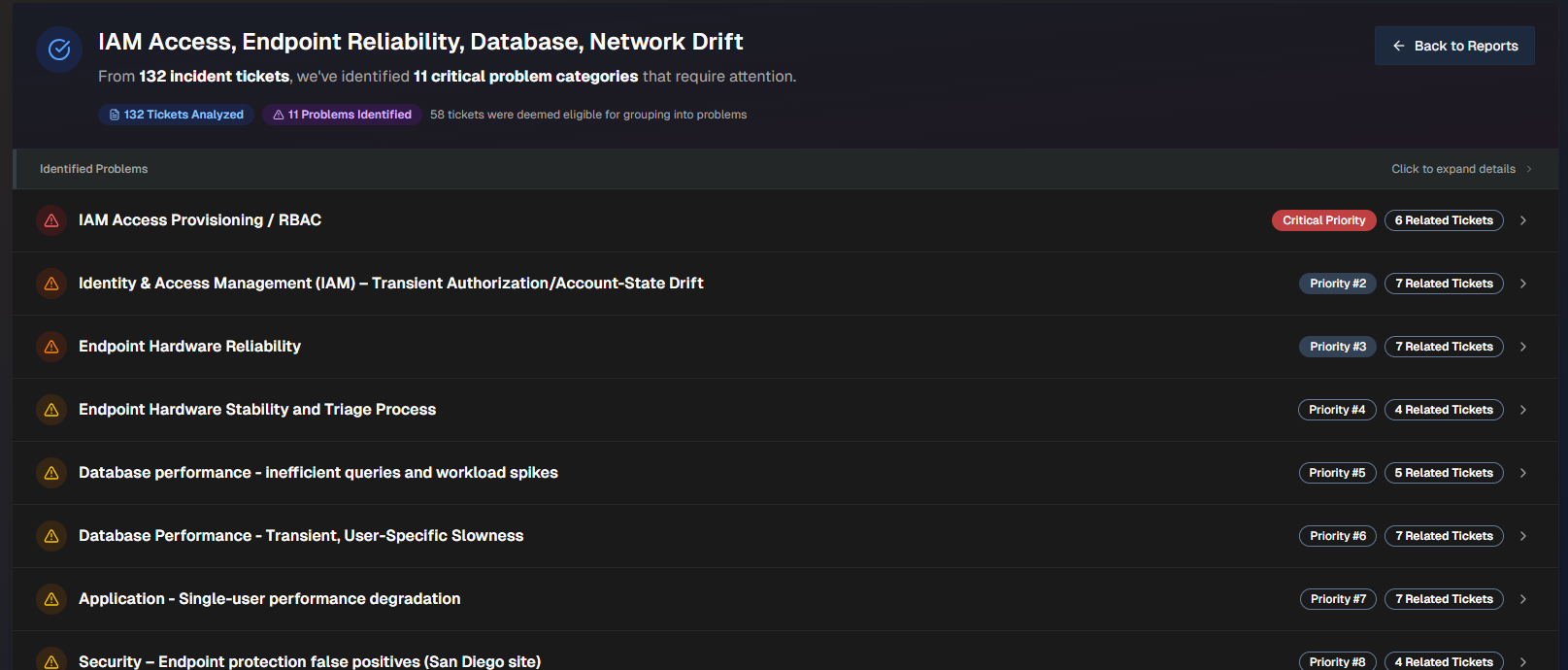
Click any problem in the list to view additional details.
The problem name, priority, number of related tickets, and a short description appears at the top of the report.
To create a ticket, click Create Problem Ticket. To export the problem as a .txt file, click Export Full Problem.
The following information about the problem is available:
Field | Description |
|---|---|
Impact Analysis | Analysis of the Business Impact and Technical Impact of the problem. |
Trend Analysis | Analysis of trends found in the incidents related to the problem. |
Key Observations | Summarized list of key observations related to the problem. |
Root Causes | Potential root causes of the problem. AI Incident Prevention analyzes each incident and derives the potential root cause based on the data available. |
Prevention Questions | List of questions to ask your team to help prevent similar problems from occurring in the future. |
Related Tickets | List of tickets related to the problem. Click any ticket to open it in the relevant platform. |
Proposed Solutions | List of potential solutions to the problem. The following information for each solution appears:
For each solution, you can Create a PTASK or Export Solution as a .txt file. |
View an Incident Analysis Report
Incident Analysis Reports are divided into three tabs:
At the top of the page, the name of the report, the time the report was generated, and the number of incidents analyzed is displayed. On the top right of the page, you can Copy the report content, Download .md, or Download .docx.
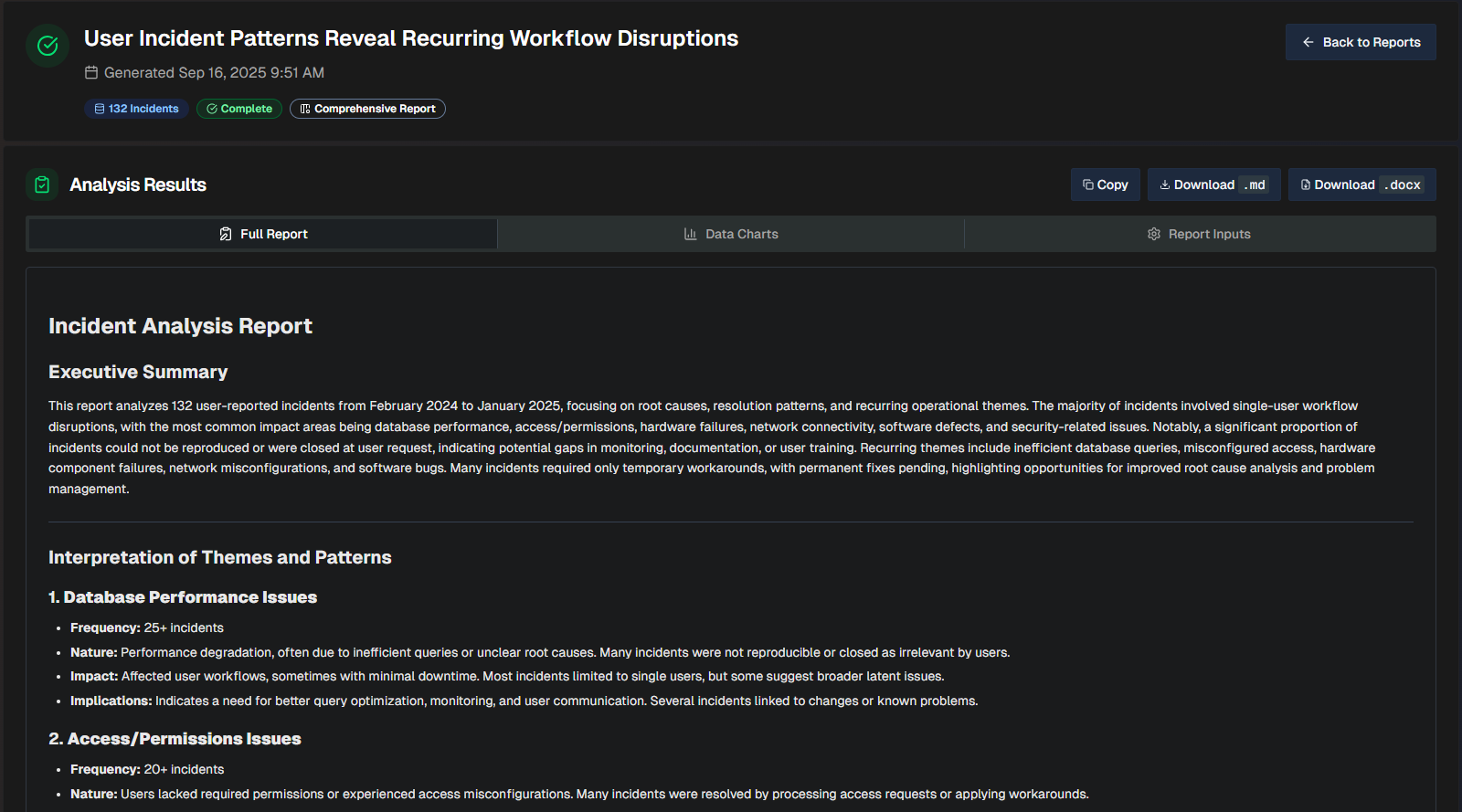
Full Report
The Full Report tab shows a comprehensive review of the incidents analzyed, with a list of themes based on patterns detected in the incidents.
Themes
Each incident can only have one theme, prioritizing the most prominent root cause or operational pattern.
When more than 25 incidents share a theme, only the most impactful are listed. Additional incidents are not shown, but are included in the total count.
The following information is available in the report:
Field | Description |
|---|---|
Executive Summary | Brief, high-level summary geared towards leadership teams. The summary highlights themes and patterns detected in the incidents analyzed. |
Interpretation of Themes and Patterns | An interpretation of each of the themes detected in the report. For each theme, the following information is displayed:
|
Recurring Themes and Associated Incidents | A detailed breakdown of each recurring theme and the incidents that are part of the theme. The table displays the following information:
|
Conclusion | Final implication summary for each of the themes in the report, with emphasis on focus areas to improve operational efficiency. |
Distilled Incident Data | Information about each incident analyzed to create the report. Display full text If a field is too long to fully display in the table, hover over it to view the full text. The following information about each incident is displayed:
To see the complete details, scroll to the right side of the table and click View. |
Data Charts
The Data Charts tab visualizes the incident information within the uploaded file.
Data charts content
Content in this tab is only populated if you selected the Generate Interactive Charts option when creating the report.
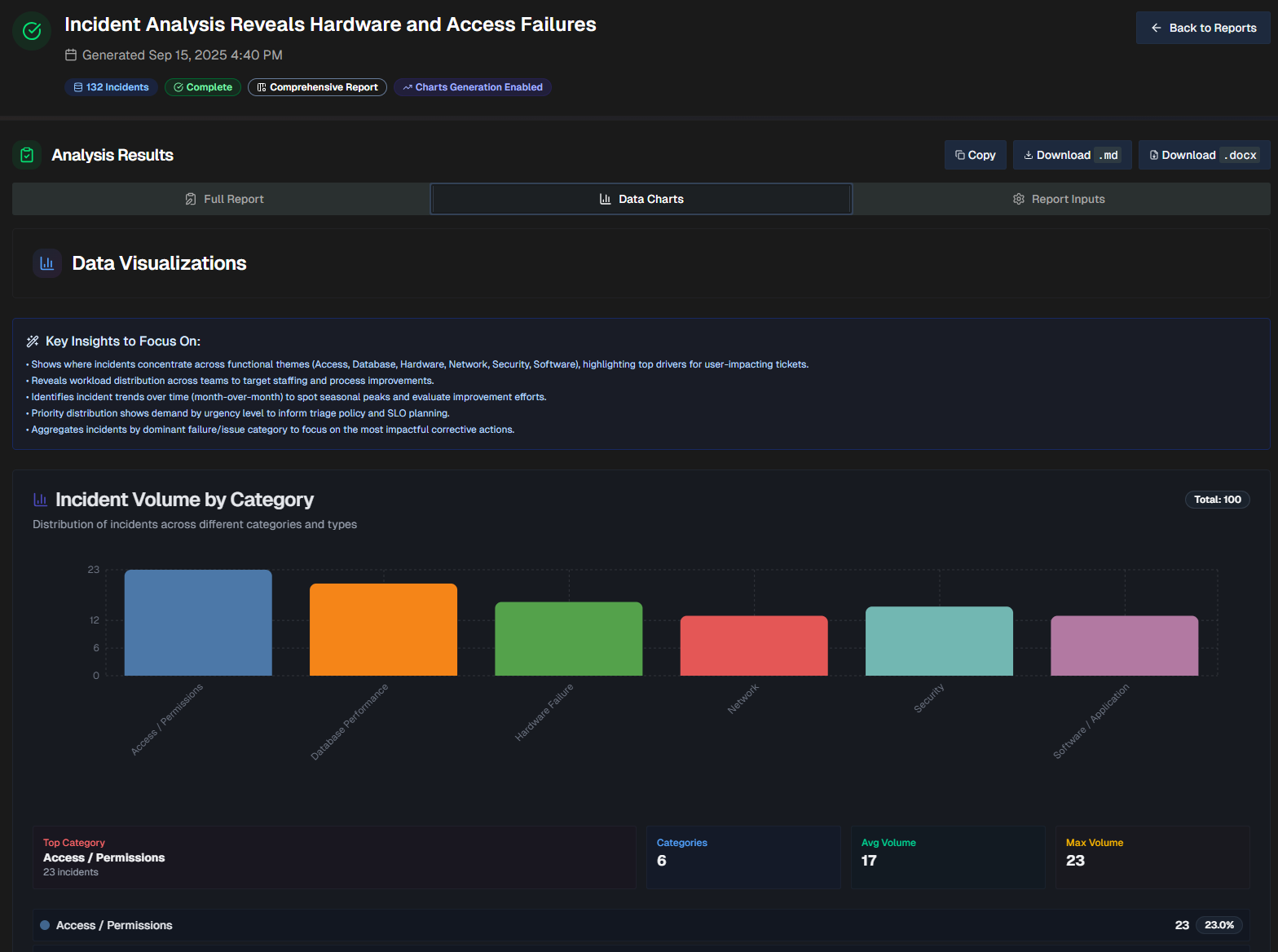
At the top of the page, a list of Key Insights to Focus On shows key points to remember while reviewing the visualizations.
The report will dynamically create visualizations based on the data in your file. Depending on the information available, each report may contain different types of visualizations, including bar graphs, line graphs, and pie charts.
Report Inputs
The Report Inputs tab displays information about how the report was configured, and the source data that was used to build the report.
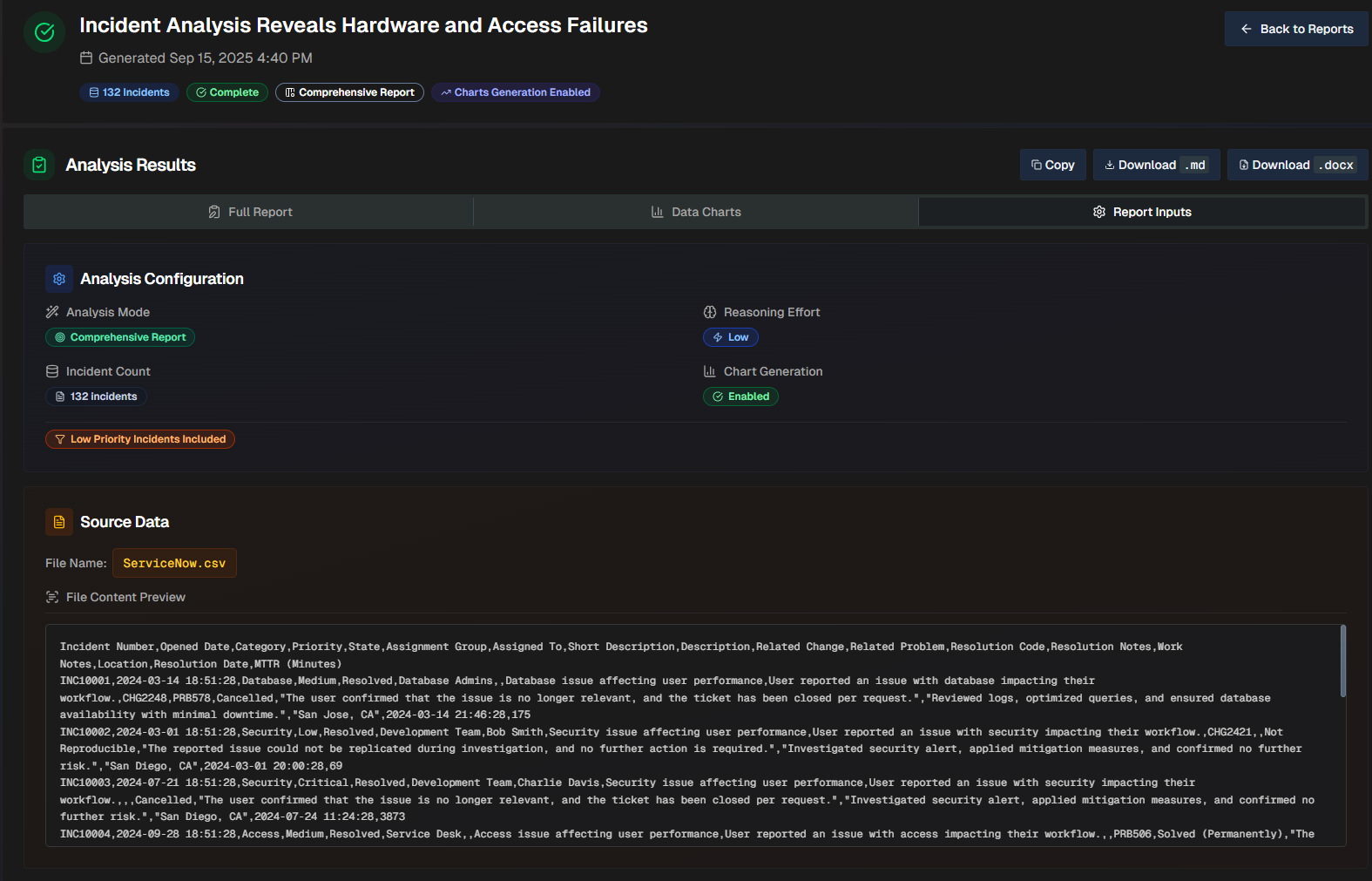
The Analysis Configuration section shows which options were selected when the report was created.
The Source Data section shows the file name, and a preview of the file.
View a Dataset Analysis Report
The Dataset Analysis report is divided into three tabs: Full Report, Data Charts, and Report Inputs.
The Full Report tab will vary depending on what Goal or Analysis Type you selected during the configuration. See the Create a Dataset Insights Report documentation for a full description of each goal and analysis type.
The Data Charts tab visualizes the incident information within the uploaded file. The report will dynamically create visualizations based on the data in your file. Depending on the information available, each report may contain different types of visualizations, including bar graphs, line graphs, and pie charts.
The Report Inputs tab displays information about how the report was configured, and the source data that was used to build the report.